Campaign Creation
Create access review campaigns by defining scope, reviewers, and schedule.
This page walks you through creating an access review campaign. A campaign is the reusable setup that tells Iden what to review, who should review it, and when the review should run. Each time a campaign runs, Iden creates a new cycle from that setup.
Opening access reviews
Go to Access Reviews from the left sidebar to see all campaigns in your organization. This page shows active campaigns, scheduled cycles, work in progress, and past review activity.
From here, admins and access review auditors can:
- Create a new campaign
- Open an existing campaign
- Monitor current cycle progress
- View past cycles and their outcomes
- Access historical records for audit evidence
Creating an access review campaign
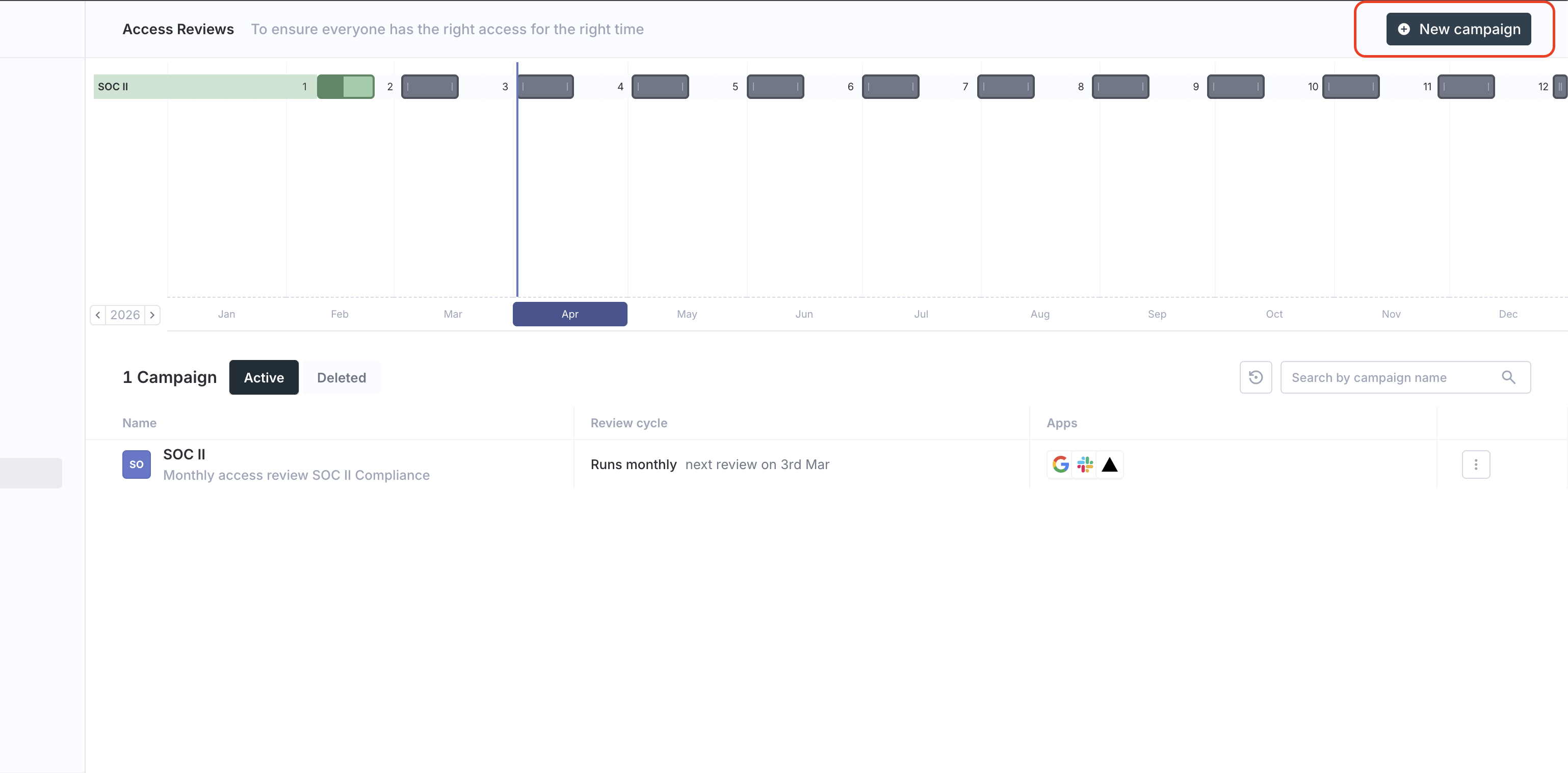
Click New campaign to start a new review campaign.
The screen below shows the Access Reviews page with the New campaign button:
1. Name the campaign
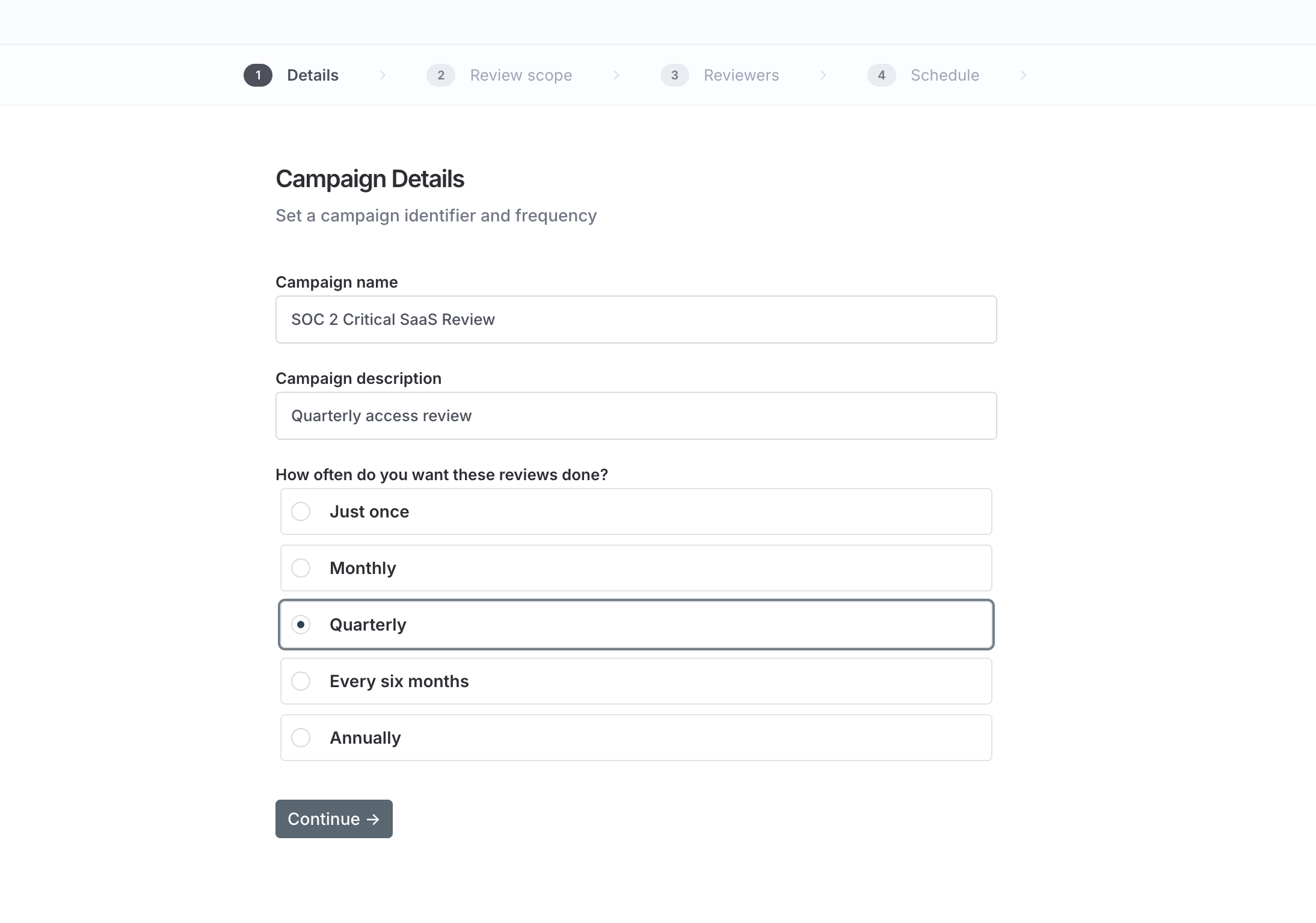
Start by filling in the basic campaign details:
| Field | What it does |
|---|---|
| Campaign name | The label shown in the campaign list, cycle views, and reports |
| Description | Optional notes for reviewers and auditors |
| Review frequency | Whether the campaign runs once or repeats monthly, quarterly, or annually |
Use a name that clearly identifies the scope and how often it runs. Good examples:
Quarterly Finance Apps Access ReviewSOC 2 Critical SaaS ReviewExternal Contractors Review - Annual
Your screen should look like this after filling in the campaign details:
2. Define the app scope and user scope
Next, choose what is included in the review.
You can scope a campaign by:
| Scope area | Examples |
|---|---|
| Users | All employees, external users, non-human accounts (like automated service accounts), or a narrower filtered group |
| Apps | A selected set of connected apps such as Google Workspace, Slack, Notion, GitHub, or Salesforce |
| App-user filters | Further narrow down which accounts are reviewed using account-level criteria where available |
This is where you decide whether the review is broad or targeted. Here are some common examples:
- Review all employee access to your most critical finance and engineering systems
- Review only external users across collaboration apps
- Review non-human or automated accounts in production systems
The screen below shows the scope configuration options:
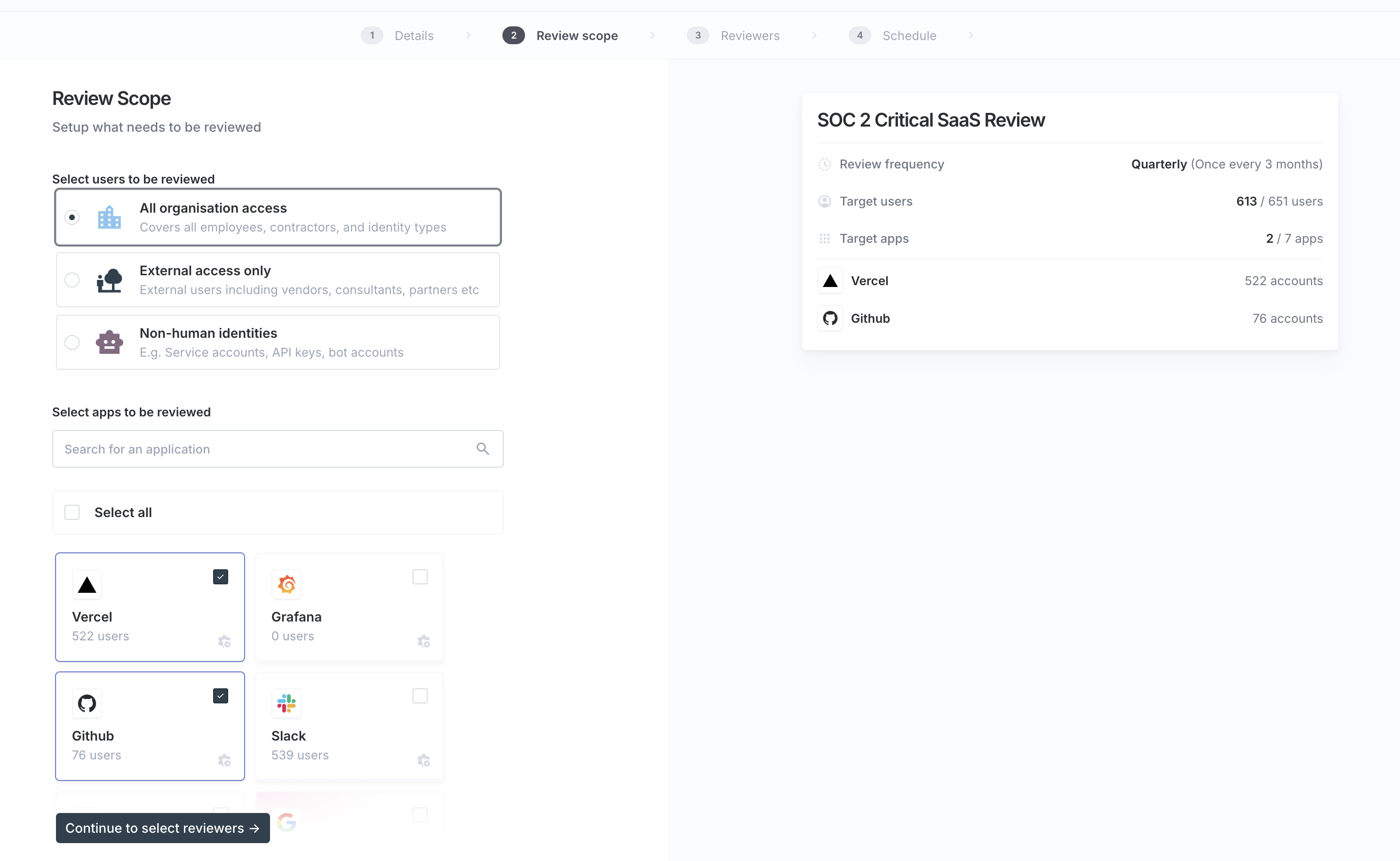
Choosing the right scope is important. A review that is too broad becomes hard to complete. A review that is too narrow may miss real risks. For most first-time setups, start with a smaller set of high-risk apps.
3. Assign reviewers
Iden supports staged reviews. This means one group of reviewers looks at access first, and then another group reviews it second. This lets you match review responsibility to business context.
Common reviewer types include:
| Reviewer type | What they review |
|---|---|
| Reporting managers | Review their direct reports' access |
| Application owners | Review access for the apps they are responsible for |
| Specific users | Reviewers you select manually in the campaign |
| Dynamic users | Reviewers selected automatically through a filter, such as team or HR attributes |
The most common pattern is:
- Reporting managers review first because they know the person's current role and responsibilities.
- Application owners review second because they understand what access is appropriate inside the app.
You can also add a stage for specific admins or compliance owners when an extra check is required.
The screen below shows the review stages configuration:
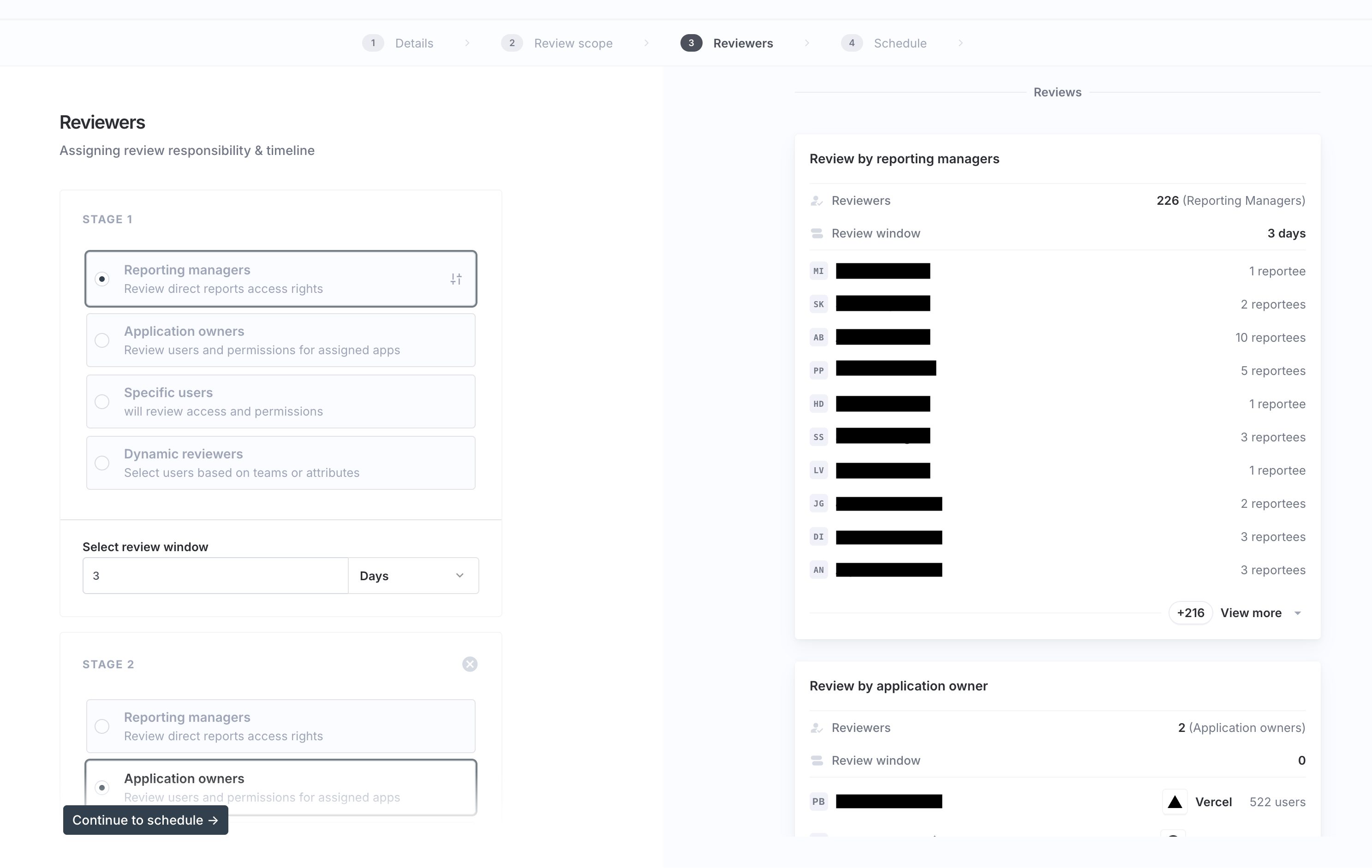
Each stage has its own review window. The review window determines how long reviewers have to submit their decisions before the next stage begins or the cycle closes.
For specific users and dynamic users stages, reviewers are not limited to a single subset of items the way managers or app owners are. In those stages, a reviewer may be able to act on any item included in the stage.
4. Set the schedule
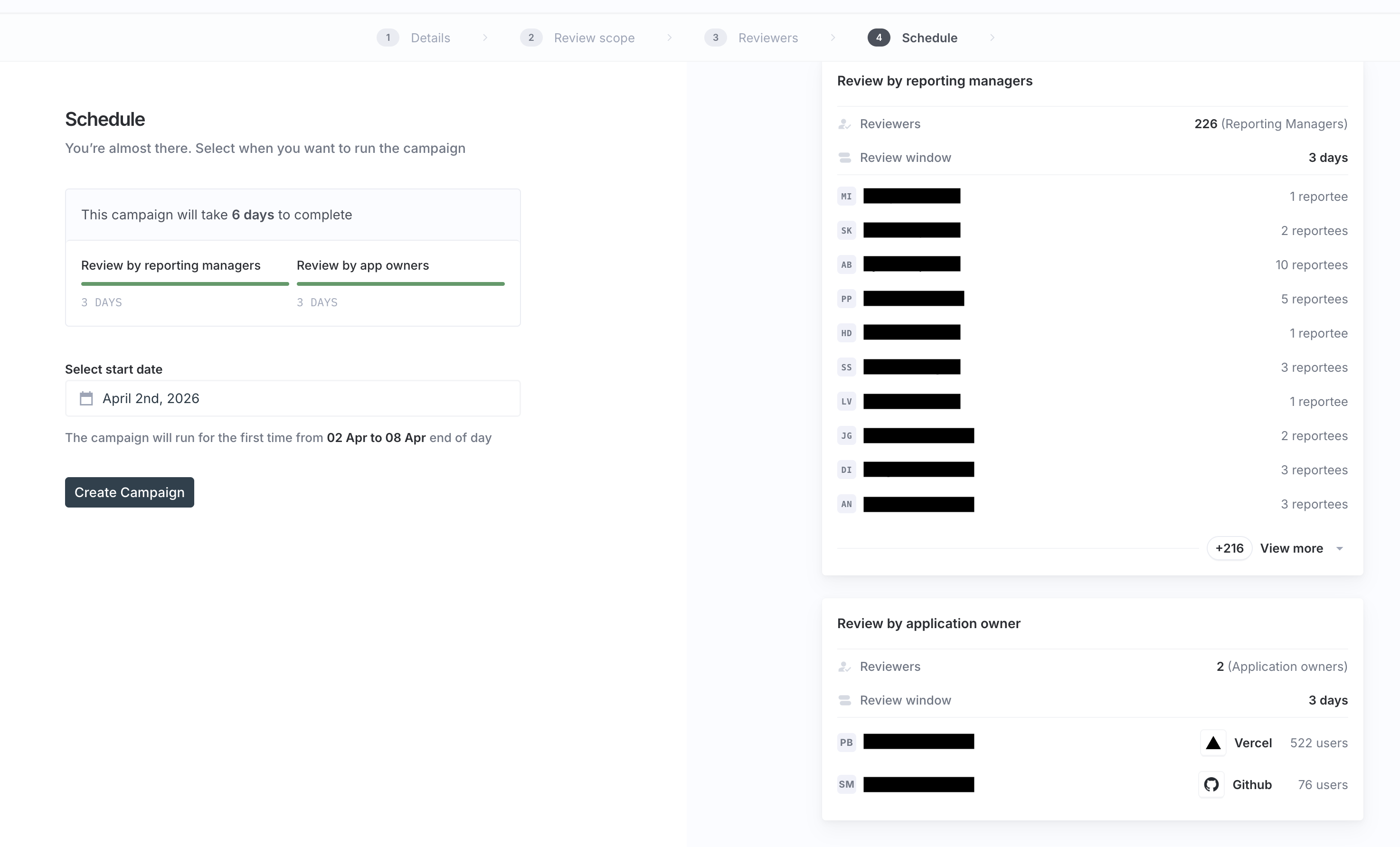
Finally, set when the cycle starts and how long reviewers have to complete each stage.
Key scheduling decisions include:
| Setting | Why it matters |
|---|---|
| Start date | Controls when reviewer emails and review tasks become active |
| Stage duration | Defines how long each reviewer group has to complete their work |
| Recurring cadence | Determines whether Iden automatically creates future cycles |
For quarterly compliance reviews, many teams use short review windows with reminders. This helps reviewers finish quickly so that follow-up actions can happen before the audit period closes.
The screen below shows the schedule configuration: