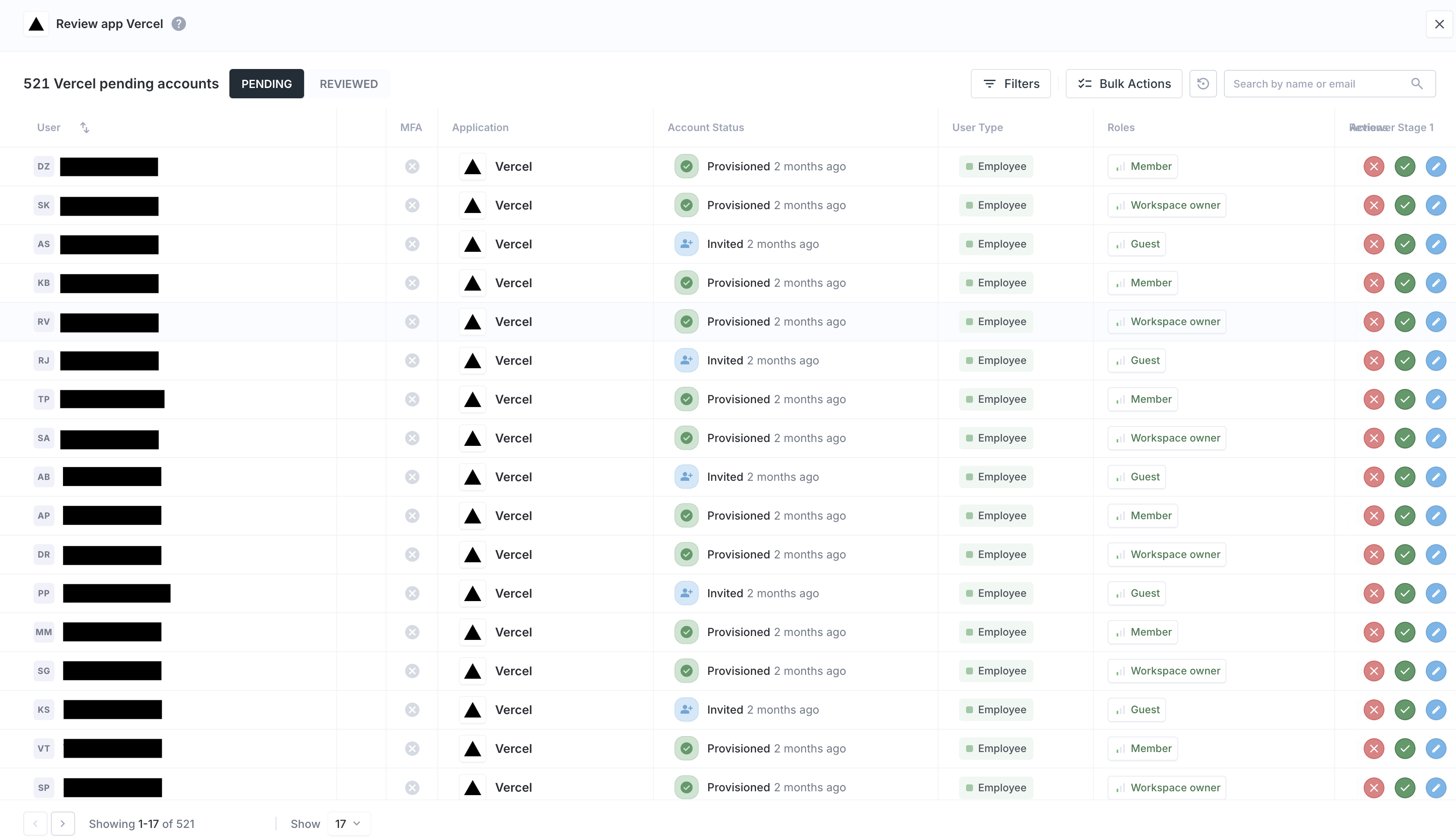
Review Process
Understand how access review cycles run and what reviewers do during a review.
Once a campaign starts, Iden creates a cycle. A cycle is the live review run that reviewers and admins interact with. It has its own start date, end date, status, and progress tracking for each stage.
Running a review cycle
Admins can open a cycle to monitor completion, check stage progress, and see how many items are pending, reviewed, flagged, or remediated (followed up on).
A cycle moves through these states:
| Status | What it means |
|---|---|
| Scheduled | The cycle is created but has not started yet |
| In progress | One or more review stages are open and reviewers can submit decisions |
| Completed | Review stages have finished and the cycle is closed for new review actions |
During an active cycle, admins can:
- Track how much of the review has been completed
- See which stage is currently open
- Review pending and completed item counts
- Send reminder emails to reviewers
- Extend or shorten a review window if needed
- Open follow-up (remediation) work after review decisions are submitted
What reviewers see
The review experience depends on the stage type, but the core steps are the same for all reviewers.
The screen below shows what a reviewer sees when they open their assigned stage:
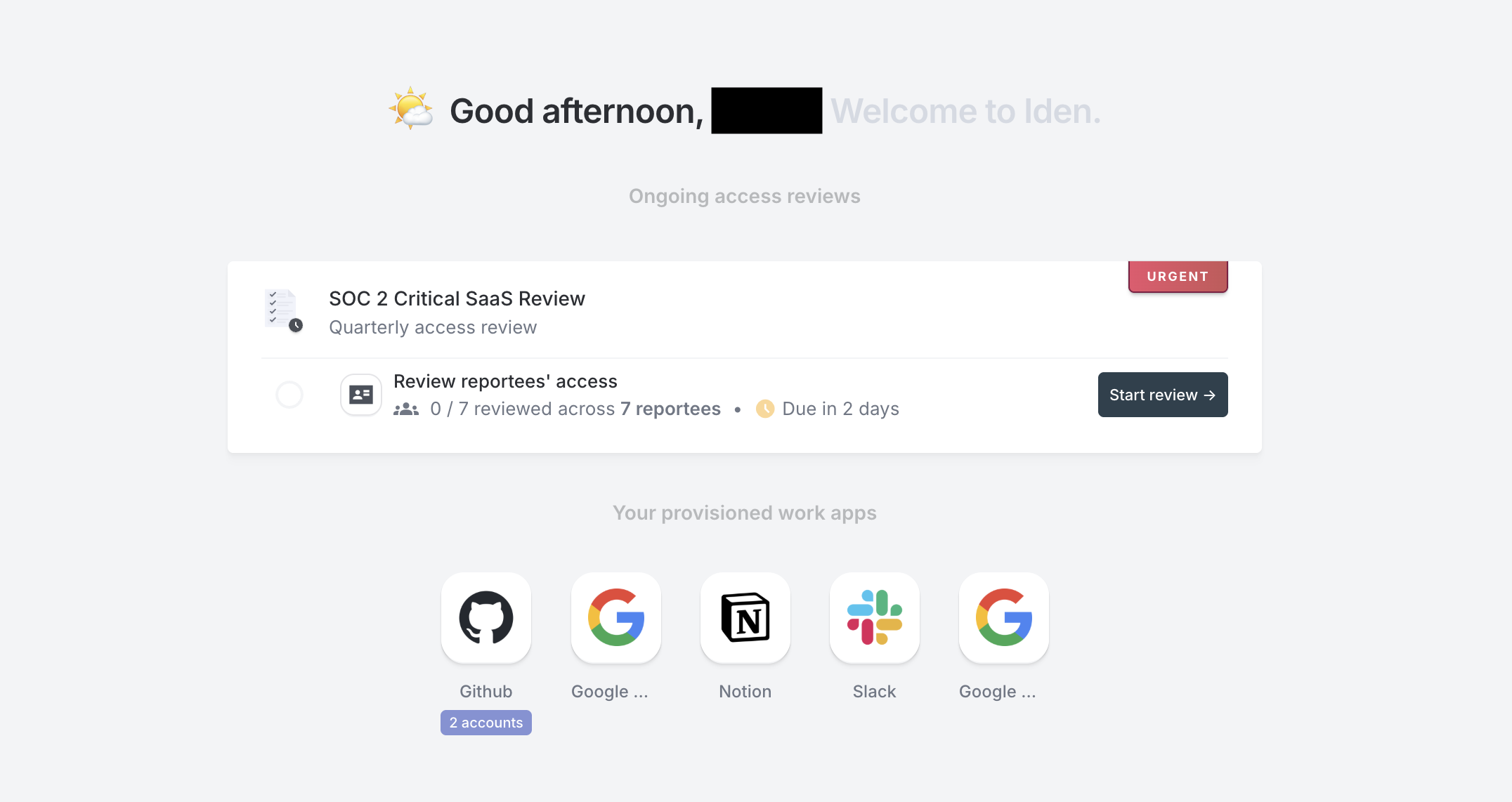
- Open the assigned review stage.
- Work through the Pending items that still need a decision.
- Submit decisions one at a time or all at once where supported.
- Move completed work into Reviewed.
- Continue until the stage is complete.
Reviewers only see the users, accounts, and apps assigned to them for that stage. They do not see the entire organization. Depending on the reviewer type, the view may be organized around:
- Their direct reports
- Apps they own
- A filtered group of users or accounts assigned by the campaign
For each review item, reviewers see enough context to make a decision - such as the user, the app, and the current access being reviewed. They may also see decisions from earlier stages when the campaign includes multiple reviewer stages.
How reviewers approve or revoke access
Reviewers can make the following decisions:
| Decision | Meaning |
|---|---|
| Approve | Keep the current access as-is |
| Reject | Flag the access for removal, suspension, or follow-up action |
| Delegate to next reviewer | Pass the item to a later stage reviewer |
| Suggest updates | Propose a change to the access level instead of a simple keep or remove decision |
| Approve suggested update | Confirm an access change that was suggested in an earlier stage |
For most reviewers, the two main actions are:
| Action | When to use it | Result |
|---|---|---|
| Approve | The user still needs this access for their role | The item stays in place and is recorded as approved |
| Reject | The user should no longer have this access | The item is flagged for follow-up after the review |
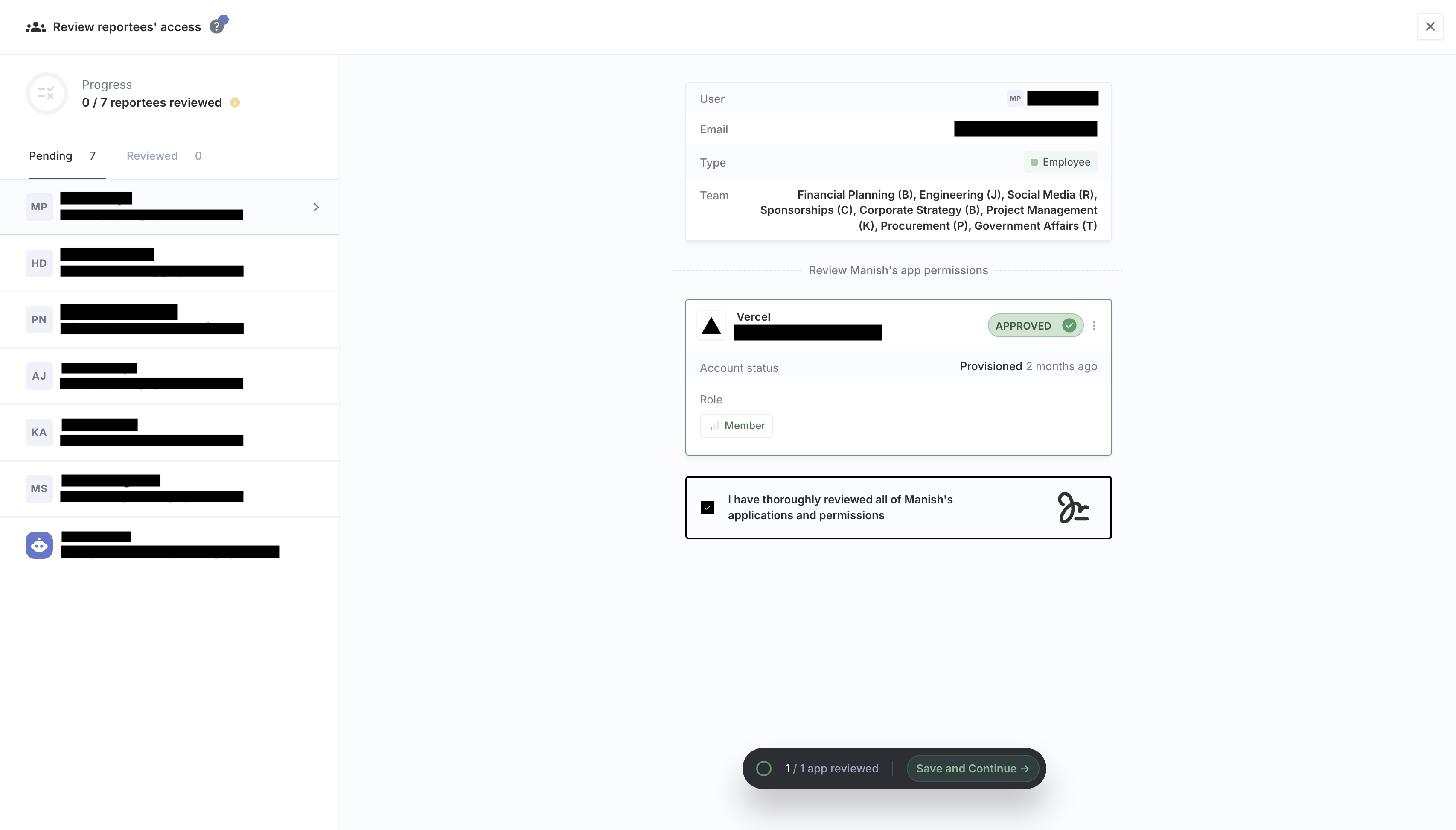
Approve
When you approve an item, you are confirming that the current access level is appropriate and should stay unchanged. Use this when the user still needs the app for their job and the level of access is still justified.
The screen below shows an item being approved:
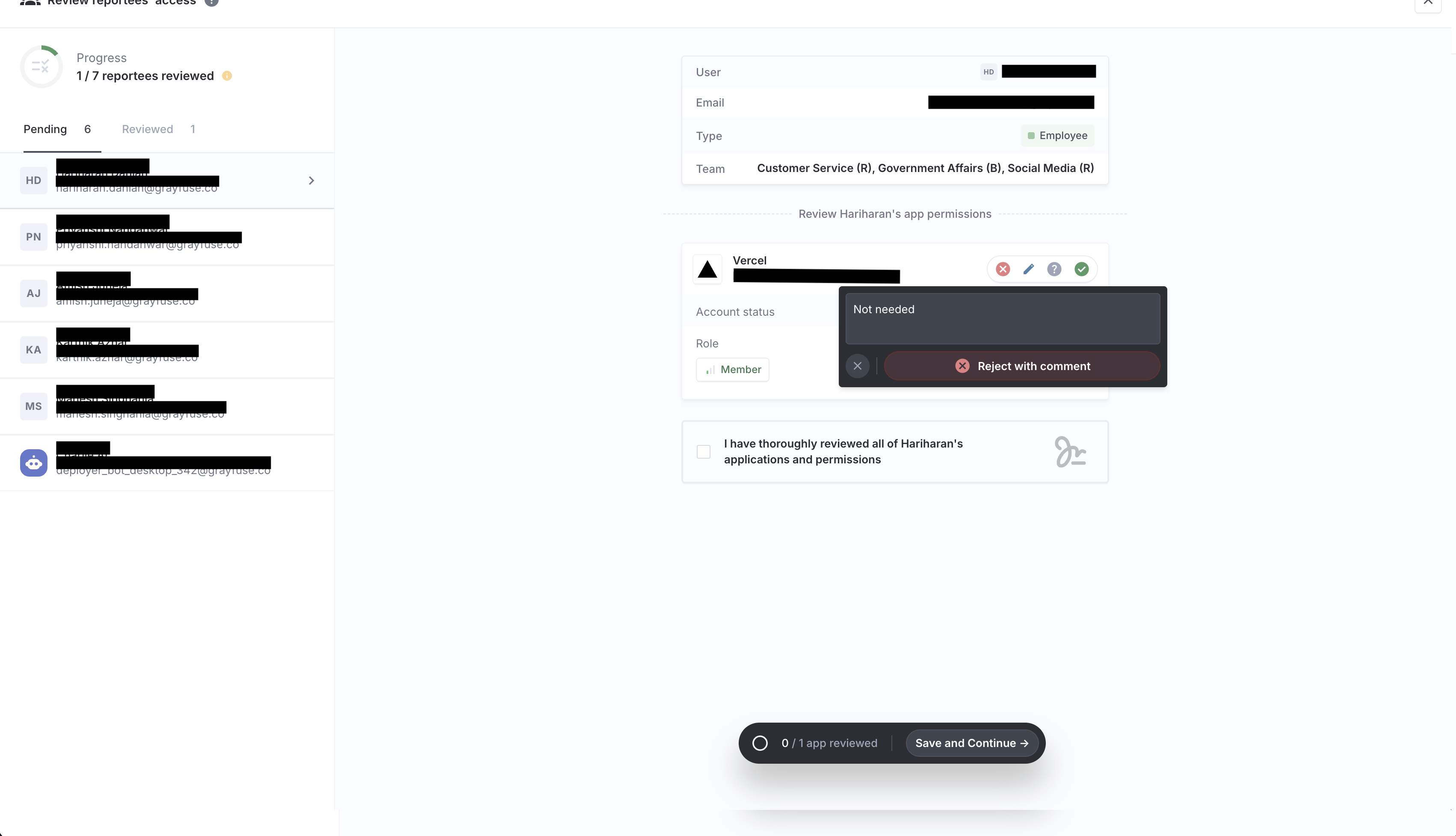
Reject
When you reject an item, you are indicating that the access should be removed or changed. Use this when the user no longer needs the app, has changed roles, or has more access than their current role requires.
The screen below shows an item being rejected:
Suggesting updates
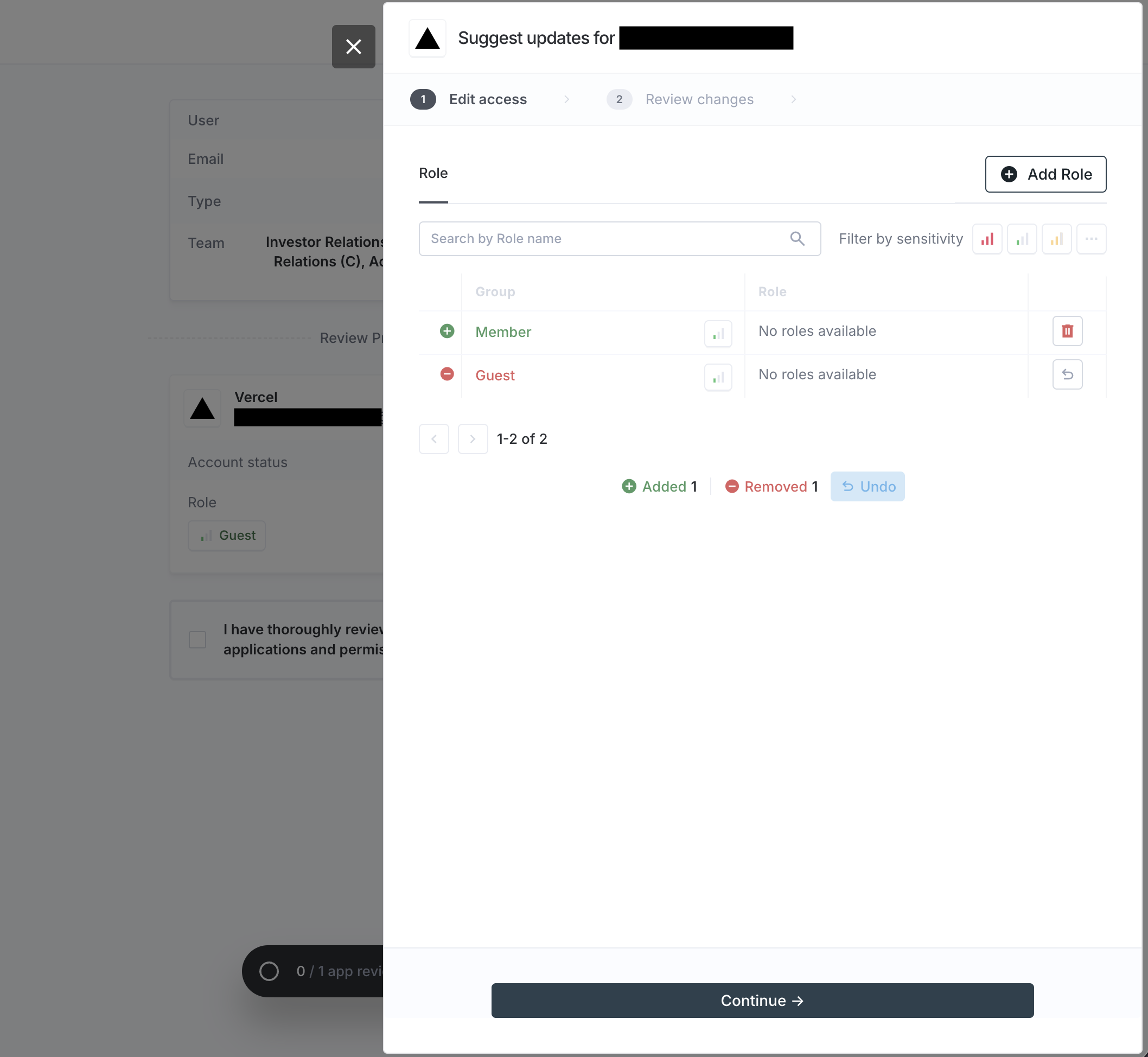
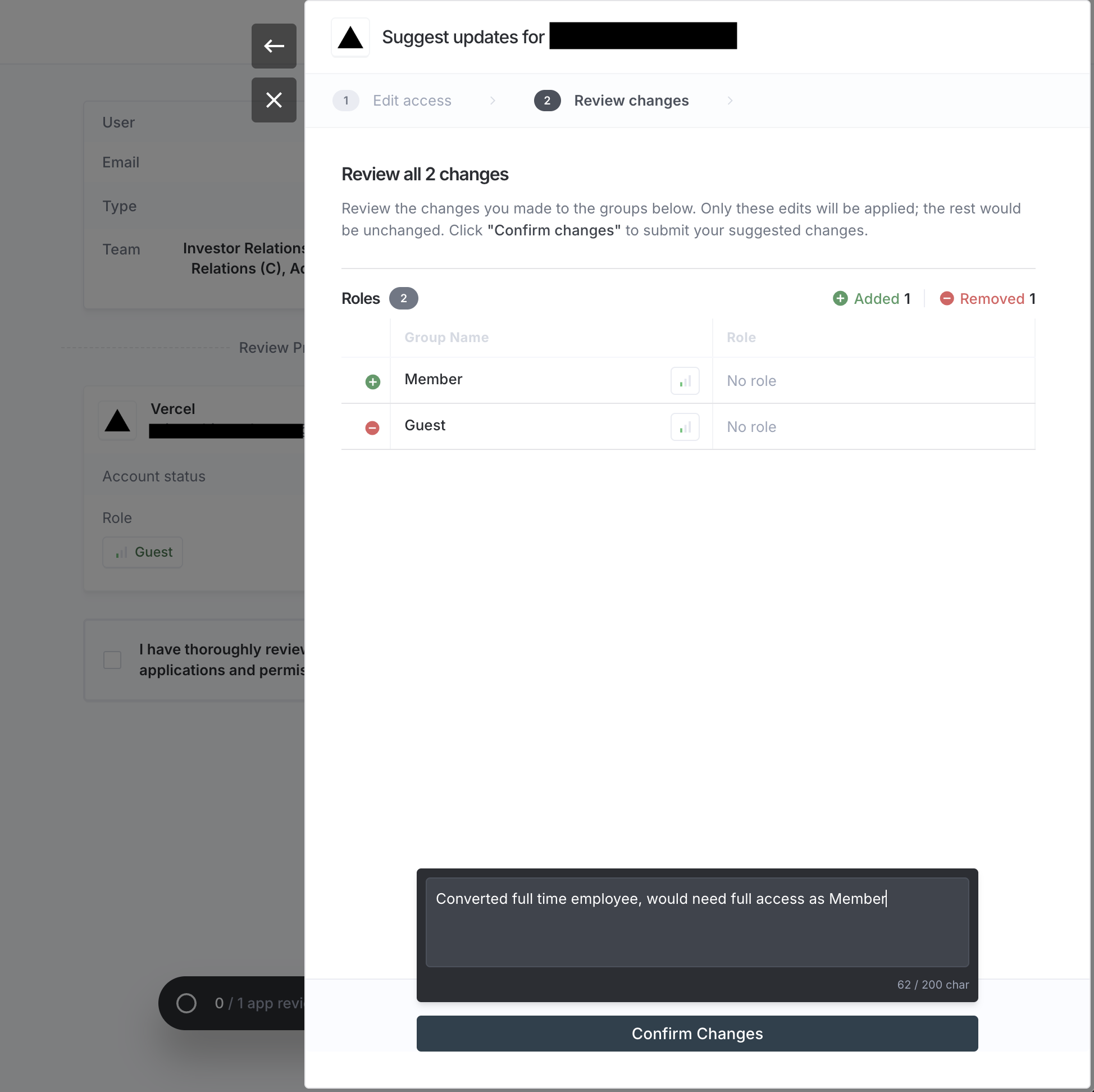
When you suggest an update, you can specify the new access level you think is appropriate. This is useful when you do not want to remove access entirely but want to reduce or change it. For example, if a user has a "GUEST" role in an app but you think they should have "MEMBER" instead, you can suggest that change rather than rejecting the access outright.
The screens below show what suggesting an update looks like:
Reporting manager reviews
Reporting managers review access for their direct reports. This stage works well when the key question is whether the access still matches the person's current job responsibilities.
Managers are usually best placed to answer:
- Is this person still on my team?
- Do they still need this app?
- Does this level of access still make sense for their role?
Application owner reviews
Application owners review access for the apps they are responsible for. This stage is especially useful when the app has specialized permission levels and the owner is the best person to judge whether each user's access is appropriate.
Application owners can review decisions made in earlier stages and either confirm them or suggest a more precise access change. In many organizations, this is the final reviewer stage before follow-up actions begin.
The screen below shows the application owner review view: