
Roles & Permissions
Understand the roles available in Iden, what each role can do, and how to assign them to team members.
Iden uses a role-based system to control what each team member can see and do in the dashboard. This is sometimes called RBAC (role-based access control). When you add someone to your organization as an admin, you assign them a role that defines their permissions.
Available roles
Iden has eight roles. Each is designed for a specific type of team member.
| Role | Designed for |
|---|---|
| Super Admin | Your primary IT admin or workspace owner - full access to everything |
| Read-Only Admin | Someone who needs visibility across the dashboard but should not make changes |
| Users Reader | Someone who only needs to view user identities and access data |
| Users Read/Write | An IT team member who manages employee onboarding and offboarding |
| Access Review Auditor | A security or compliance team member who runs and manages access review campaigns |
| Ticket Auditor | Someone who needs to monitor access request activity and audit logs |
| Workspaces Admin | A team member managing multi-workspace (gateway) infrastructure |
| Workspaces Manager | A team member managing users within a specific workspace |
Workspaces Admin and Workspaces Manager are only visible if your organization uses multi-workspace (gateway) features.
Permissions by role
Super Admin
Full access to the entire Iden dashboard with no restrictions.
- Manage all connected apps, users, and identities
- Access and configure all organization settings (SAML, API keys, team, domains)
- Create and manage access review campaigns
- View and act on all tickets
- Onboard and offboard employees
- Manage API keys (create, view, delete)
- Add, change, and remove team members' roles
Read-Only Admin
Can see everything in the dashboard but cannot make any changes.
- View all apps, users, tickets, access reviews, and settings
- Cannot edit settings, onboard or offboard users, or create campaigns
- Useful for auditors or stakeholders who need visibility without edit access
Users Reader
Read-only access limited to user identity and access data.
- View the Users page and individual user profiles
- View connected apps and flagged items
- View access review results
- Cannot onboard, offboard, or edit users
Users Read/Write
Everything in Users Reader, plus the ability to make changes.
- Onboard and offboard employees
- Edit user profiles and manage identities
- Access onboarding templates
- Cannot access organization settings or manage team members
Access Review Auditor
Focused on running and managing access review campaigns.
- Create new access review campaigns
- View and manage ongoing and past access reviews
- Review access for assigned apps
- Cannot access general settings, user management, or tickets
Ticket Auditor
Focused on access request visibility and audit records.
- View all access request tickets
- View the activity log
- Cannot approve or reject tickets (that is handled by configured approvers)
- Cannot access user management or settings
Workspaces Admin
Full access to multi-workspace (gateway) management.
- Manage all gateway workspaces and their settings
- Assign and manage users across workspaces
Workspaces Manager
Limited to managing users within a specific workspace.
- Add and remove users from an assigned workspace
- Cannot access workspace settings or create new workspaces
Assigning a role to a team member
Only Super Admins can assign and change roles.
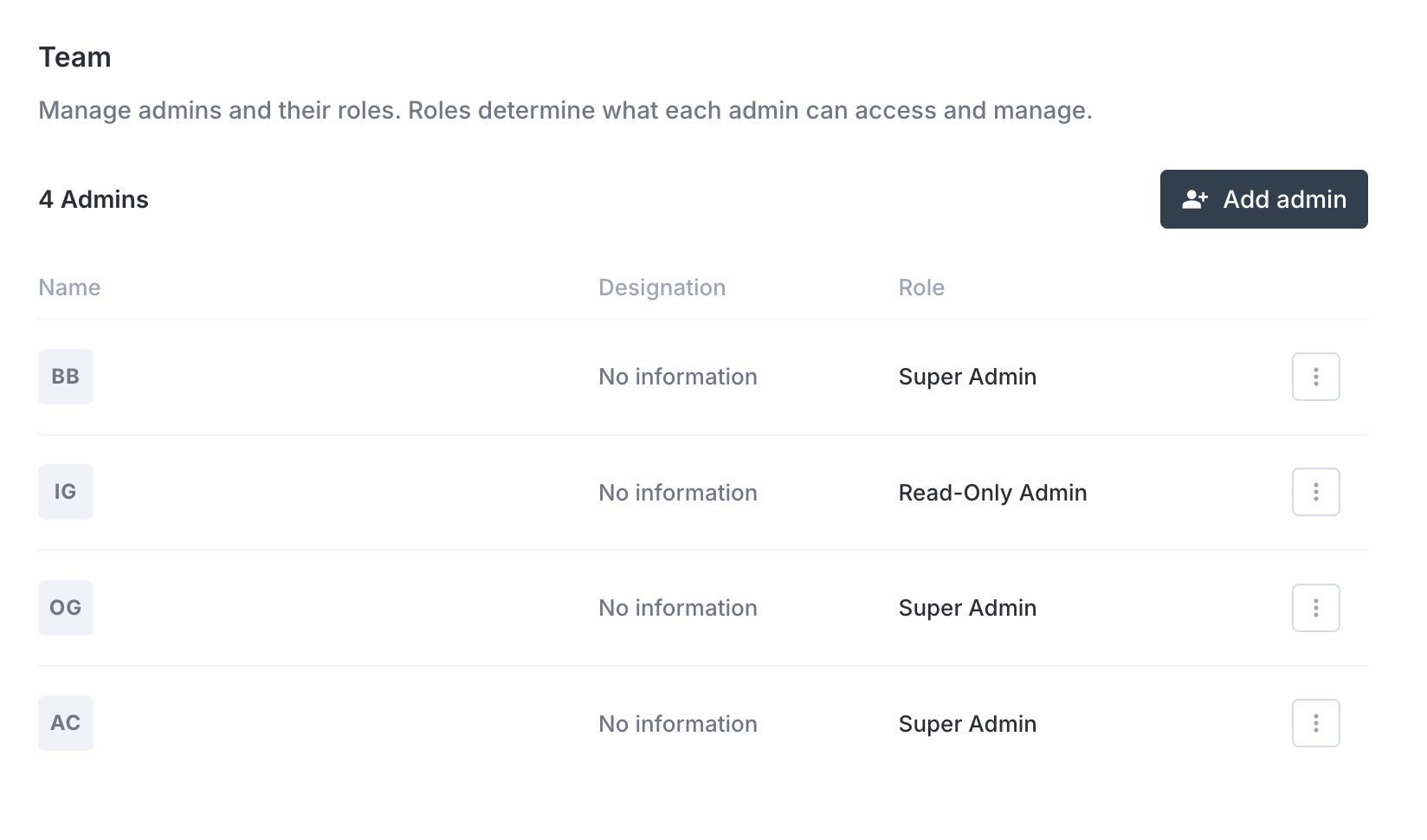
- Go to Settings in the left sidebar and scroll to the Team section.
- Click Add admin (top right of the table).
- In the side panel, select the team member you want to add using the user picker.
- Choose their role from the Role dropdown.
- Click Add admin.
The person's permissions take effect the next time they sign in. Iden sends them a dashboard invitation email when the role is assigned.
The screen below shows the Team section with the Add admin side panel:
Changing or removing a role
In the Team table, click the ... menu on any team member's row:
- Edit role - Opens the side panel with their current role pre-selected. Update the role and click Update role.
- Remove admin - Immediately removes their dashboard access. Their user record in Iden is not deleted.
Role changes take effect on the team member's next sign-in.
Roles and access reviews
If you need a team member to run access reviews without giving them broader admin access, use the Access Review Auditor role. We recommend this role for:
- Compliance officers running periodic access certifications
- Security analysts reviewing third-party access
- Department heads reviewing their team's app access
Reviewers assigned to specific campaigns do not need a dashboard role at all. They receive a dedicated review link by email and can complete their review without logging into the main dashboard.