
Installation
How to install the Iden Slack bot in your workspace.
This guide walks you through installing the Iden Slack bot. Once installed, your team can manage access requests, approvals, and alerts without leaving Slack.
Before you start
Make sure you have both of the following:
- Admin access in your Iden organization (you need the Super Admin role)
- Slack workspace admin permissions, or the ability to approve app installations in your Slack workspace
Installing the bot
-
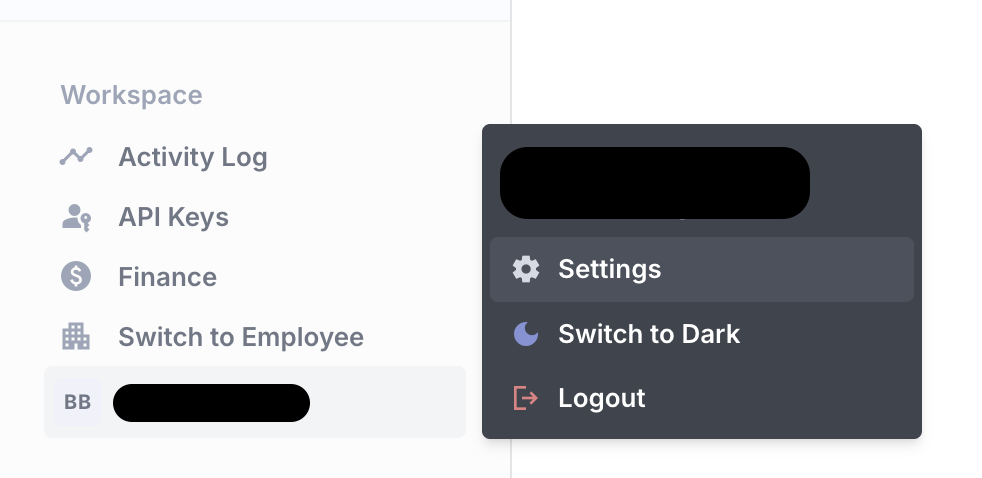
Open the Settings page from the left sidebar.
The screen below shows what you will see:
-
Scroll down to the Integrations section and click Setup Slack App.
Your screen should look like this:

-
In the panel that opens, click Authorize Slack. You will be taken to Slack's authorization page to approve the connection.
-
Choose a channel for the bot to post alerts to. This is the Slack channel where Iden will send notifications about new app discoveries, offboarding alerts, and other important events.
-
Click Allow to authorize Iden.
We recommend creating a dedicated channel just for Iden alerts (for example, #iden-alerts). This keeps notifications organized and easy to find.
You will be redirected back to the Iden dashboard with a confirmation that the connection was successful.
What gets set up automatically
Once installed, Iden automatically:
- Links Slack users to their Iden accounts by matching email addresses
- Enables the App Home tab in Slack, where users can view and manage their access requests
- Registers the
/accesscommand in your Slack workspace so employees can request access - Starts sending alerts to the channel you chose during setup
Bot permissions
During installation, Iden requests permission to perform certain actions in your Slack workspace. The table below explains what each permission is for.
| Permission | Purpose |
|---|---|
commands | Registers the /access command in Slack |
chat:write | Sends messages for alerts, tickets, and approvals |
users:read | Matches Slack users to their Iden accounts |
users:read.email | Reads user email addresses to link accounts |
incoming-webhook | Posts alerts to the channel you selected |
Alert settings
After installation, you can choose which alerts the bot sends to your Slack channel.
-
Go to Settings - Integrations - Slack.
-
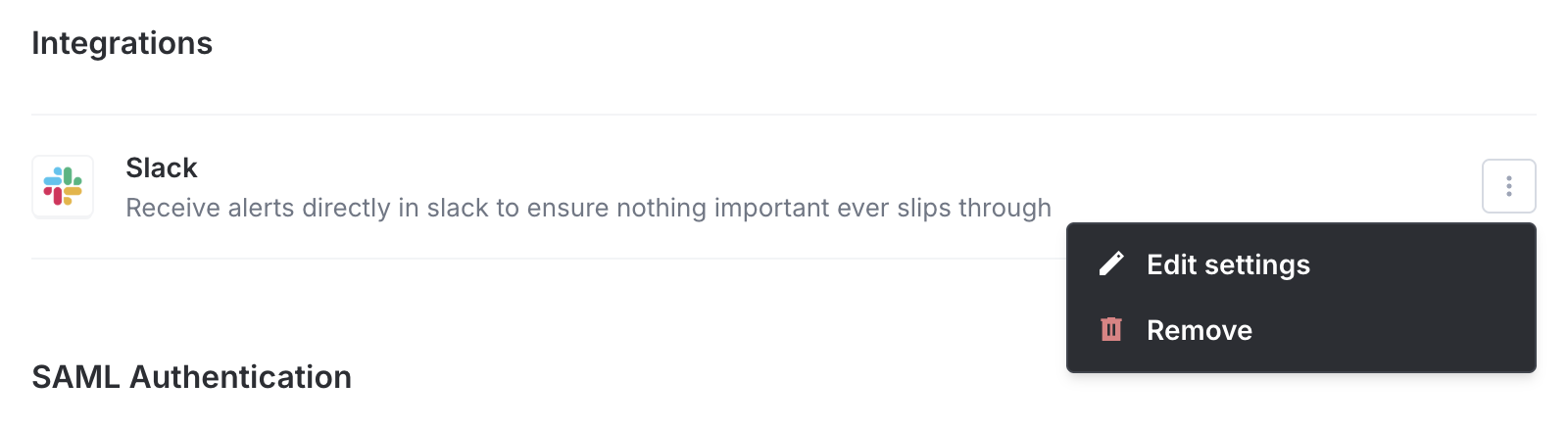
Click the options menu (the three-dot icon) on the right and select Edit Settings.
The screen below shows what you will see:
-
In the panel that opens, turn all alerts on or off at once, or configure each one individually:
| Alert | Description |
|---|---|
| Sign ups on watchlist apps | Receive an alert whenever someone signs up for an app you are monitoring |
| Off-boarded employees with provisioned accounts | Get alerted when accounts for offboarded employees are still active |
| Newly discovered apps | Receive an alert whenever Iden detects a new app being used by someone on your team |
Uninstalling the bot
To remove the Slack bot from your workspace:
-
Go to Settings - Integrations - Slack.
-
Click the options menu (the three-dot icon) on the right and select Remove.
The screen below shows what you will see:
-
A confirmation prompt will appear. Click Remove to confirm.
This removes the bot from your Slack workspace and turns off all Slack-based notifications and commands.
Uninstalling the bot stops all Slack notifications, including approval messages for access requests. Make sure your team knows before you remove it.