
Usage Guide
How to use the Iden Slack bot for access requests, approvals, and notifications.
Once the Slack bot is installed, your team can request access, approve requests, and receive alerts - all without leaving Slack. This guide explains how each part of the bot works.
Requesting access
There are two ways to start an access request from Slack:
-
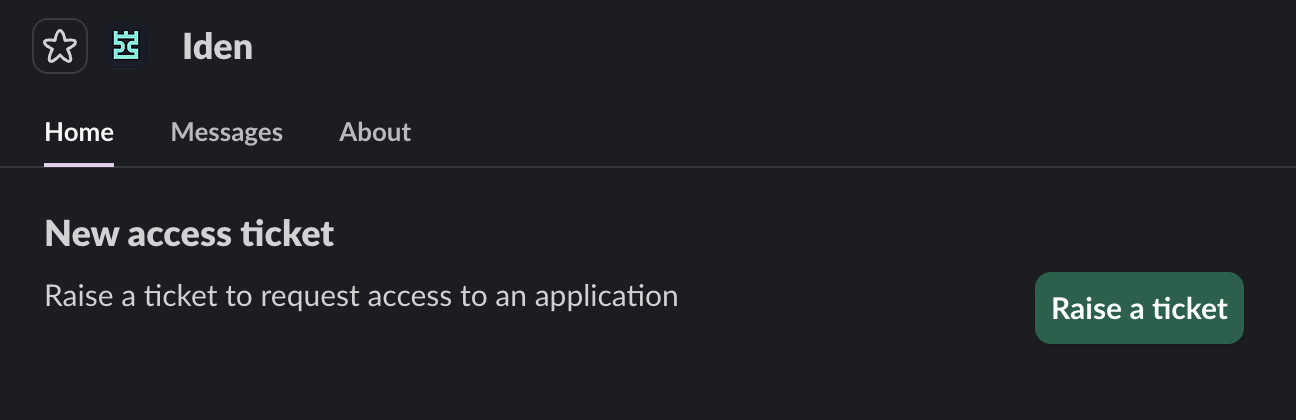
From the App Home - Open the Iden app in your Slack sidebar and click Raise a Ticket.
The screen below shows what you will see:
-
Using the
/accesscommand - Type/accessin any Slack channel or direct message to start a request right away.Your screen should look like this:
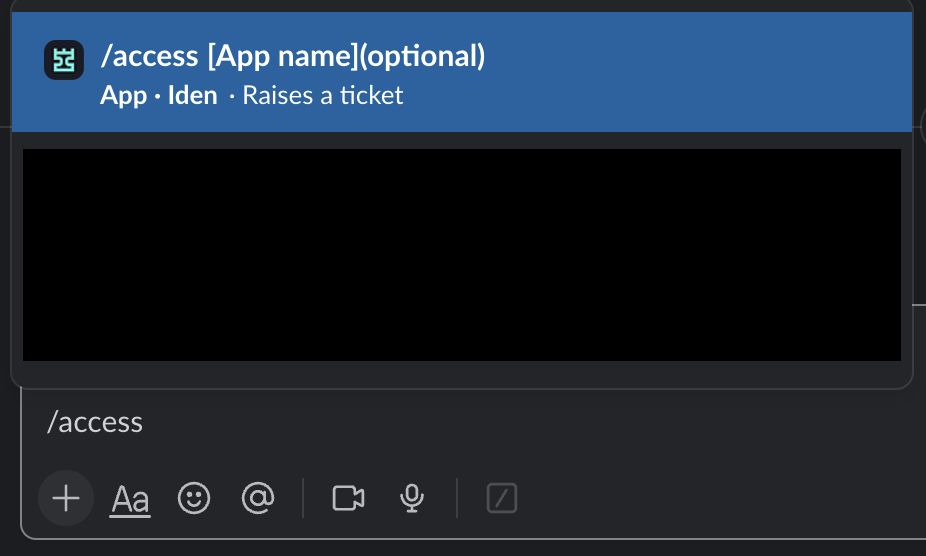
You can also include an app name directly in the command:
/access gitHubIf the name matches an app in your organization, the first step of the request flow is skipped automatically.
Steps to complete a request
Once you start the flow, follow these steps:
- Select the app - Choose which application you need access to. This step is skipped if you typed the app name directly in the command and it matched.
- Choose roles and permissions - Select the specific roles, groups, or permission levels you need. Add a short explanation for why you need them.
- Set the duration - Choose how long you need access. If your organization has set a maximum duration, it will be applied automatically.
- Select approvers and submit - Iden works out who needs to approve your request based on your organization's approval rules. Select from the available approvers and submit. Your request is now in the queue.
App Home
Click on the Iden app in your Slack sidebar to open the App Home tab. Here you can:
- View and act on requests waiting for your approval - See access requests that need your review and approve or reject them directly
- View your own open requests - See requests you have submitted that are still in progress
- Start a new request - Click Raise a Ticket to begin a new access request
Approving or rejecting a request
When a request needs your approval, you will receive a direct message from the Iden bot. The message includes:
- Who is requesting access
- What they are requesting (app, role or group, duration)
- Why they need it (the reason the requester provided)
- Approve and Reject buttons to take action right away
Approving a request
Click Approve to grant the access request. While approving, you can optionally:
- Leave a comment - Add any context or notes about the approval
- Change the duration - Adjust how long access is granted before approving
Once all required approvals are received, Iden automatically sets up the access in the target app.
Rejecting a request
Click Reject to deny the request. You can optionally leave a comment explaining the reason. The requester will receive a Slack notification letting them know their request was not approved.
Reminders
If you have not acted on an approval request, Iden can send you automatic reminders. The person who made the request can also manually send a reminder from the Iden dashboard.
Notifications for requesters
As the person who made a request, you will receive a direct message for each key update:
| Event | Notification |
|---|---|
| Ticket created | Confirmation that your request was submitted |
| Ticket approved | Your request was approved and access is being set up |
| Ticket rejected | Your request was not approved by an approver |
| Task completed | Access has been successfully set up in the app |
| Task failed | There was an error setting up access - you may need to follow up |
Channel alerts
The Iden bot posts alerts to the channel you selected during installation. You can choose which alerts are active from the alert settings.
Sign ups on watchlist apps
When someone signs up for an app you are monitoring, an alert is posted to your channel. You can:
- Add to Watchlist - Keep monitoring the app and get notified when new users sign up
- Ignore - Dismiss the alert and stop future notifications for this app
- Review in Iden - Open the app details in the Iden dashboard
Offboarded employees with active accounts
When an offboarded employee still has an active account in a connected app, an alert is posted with a link to view the user in Iden so you can take action.
Newly discovered apps
When Iden detects a new app being used by someone on your team, an alert is posted to keep your team informed.