
App Settings
Configure alerts, ownership, approval routing, workflows, offboarding, and more for each connected app.
Each connected app has its own settings panel where you can customize how Iden governs access for that app. This page explains every setting so you know what to configure and why. To open the settings for an app, go to Connected Apps, click on the app, and select the Settings tab.
The screen below shows the settings page layout:
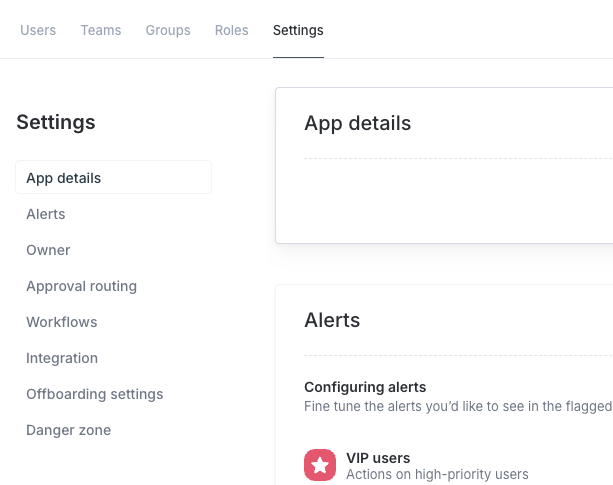
App details
This section is read-only. It shows the app's name, icon, number of active users, and the date and time of the last sync.
Alerts
Use this section to choose which types of accounts Iden should flag and monitor for this app. Turning on an alert means Iden will notify you when it finds accounts matching that description.
The screen below shows the available alert toggles:
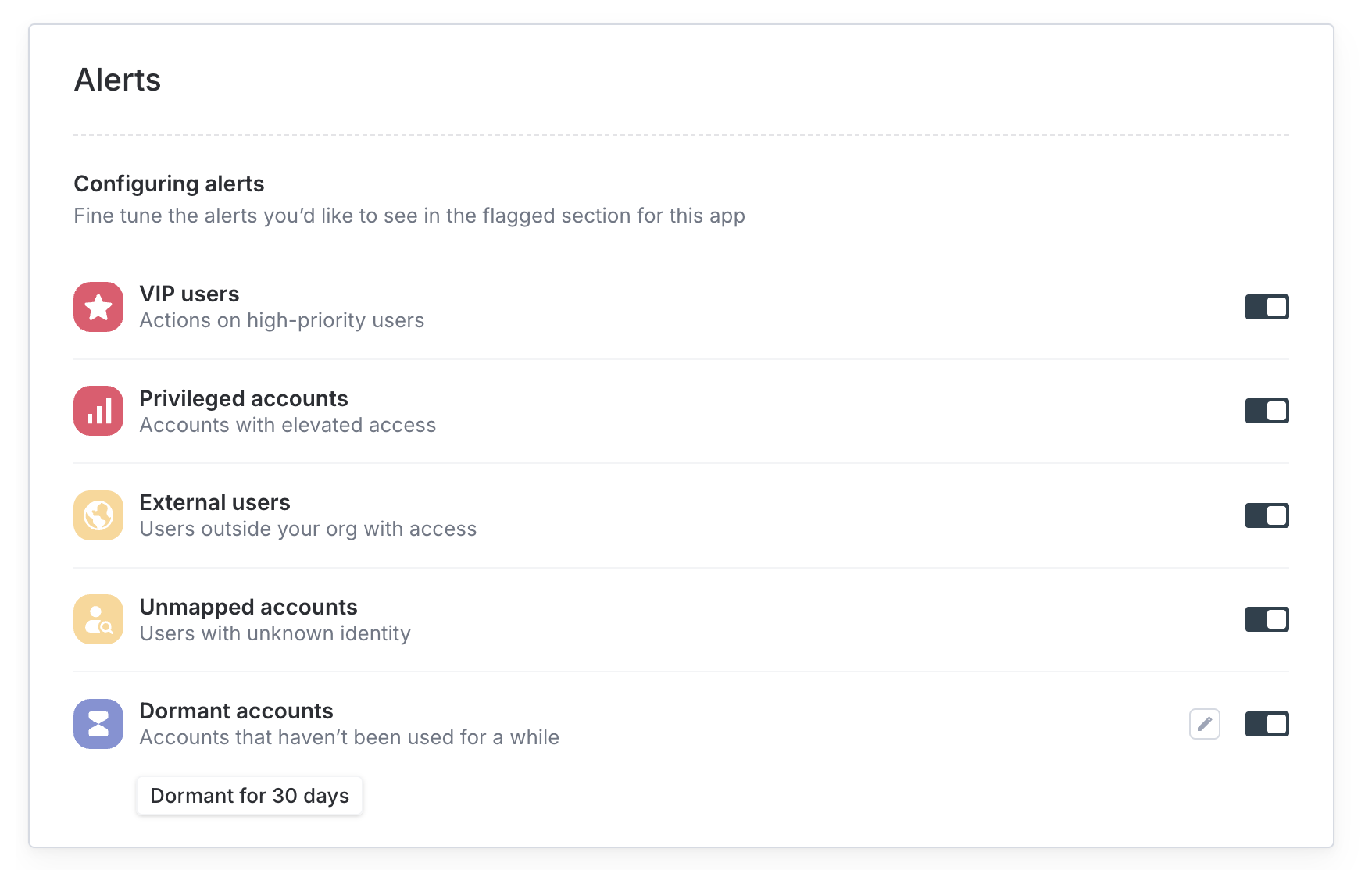
| Alert | What it tracks |
|---|---|
| VIP users | Actions on accounts marked as high-priority, such as executives |
| Privileged accounts | Accounts with elevated permissions, such as admin roles |
| SoD violations | Users who have a risky combination of permissions - this is called a Separation of Duties (SoD) violation. It flags situations where one person has too much access in a way that could allow fraud or error to go undetected. |
| External users | Accounts that belong to people outside your organization, such as contractors |
| Unmapped accounts | Accounts where Iden cannot identify which employee they belong to |
| Dormant accounts | Accounts that have not been used for a set period of time |
SoD violations and Dormant accounts each have an Edit button when enabled:
- SoD - define which combinations of access count as a violation
- Dormant accounts - set how long an account must be inactive before it is flagged (for example, 90 days)
Owner
The app owner is the person responsible for approving access requests and overseeing governance for this app. Every app should have an owner assigned.
Click the edit icon to change the owner. Start typing a name or email address and select the new owner from the results.
Approval routing
This section defines the chain of approvals required before someone is granted access to this app. You can require multiple levels of approval - for example, both a manager and an IT admin must approve before access is granted.
Each approval level card shows the level name, who the approvers are, and how many routing rules are configured.
- Add a level: Click Add approval step at the bottom of the section
- Reorder levels: Drag the handle on the left side of each card to change the order
An approval level is incomplete unless it has at least one routing rule or at least one fallback approver. Incomplete levels are highlighted with a warning. Iden will not process requests through an incomplete level.
See Approval Routing for a full configuration guide.
Ticket Policies
Use this section to control which resources (groups or roles) users are allowed to request access to for this app.
| Policy | Behavior |
|---|---|
| Allow All | All resources can be requested unless you have explicitly blocked them |
| Allow Specific | Only resources you explicitly list can be requested |
| Deny All | No access requests are allowed for this resource type |
You can also set a maximum access duration. For example, you can limit access grants to 30 days so that access automatically expires and must be renewed.
Workflows
Auto-deprovision inactive users
This setting automatically removes access for users who have not logged in to the app after a set period of time. Deprovisioning means their access is revoked.
Turn this on, then click the configuration button to set the inactivity period. You can choose 30, 60, or 90 days, or enter a custom duration in days, weeks, or months. You can also set a grace period - a buffer of extra time before access is removed.
Auto-deprovision when removed from identity provider
An identity provider (IdP) is the central directory your organization uses to manage employee accounts - common examples are Google Workspace and Microsoft Entra (formerly Azure Active Directory).
When this setting is on, Iden will automatically remove a user's access in this app as soon as they are removed from your IdP. This is useful for ensuring access is cleaned up during employee offboarding without manual steps.
Turn this toggle on - no additional configuration is needed.
Integration
This section is read-only. It shows technical details about the connection.
| Field | What it shows |
|---|---|
| Integrated by | The team member who originally set up the connection |
| Integration type | Whether the connection uses OAuth, Warp (Cloud or On Device), or API/SCIM |
| Session | If this app's session is shared with or derived from another connected app |
| Identity provider | Toggle to mark this app as an identity provider (the main directory your organization uses to manage user accounts) |
Offboarding settings
This section controls what Iden does with a user's account in this app when they are offboarded (when they leave your organization or have their access removed).
The screen below shows the available offboarding options:
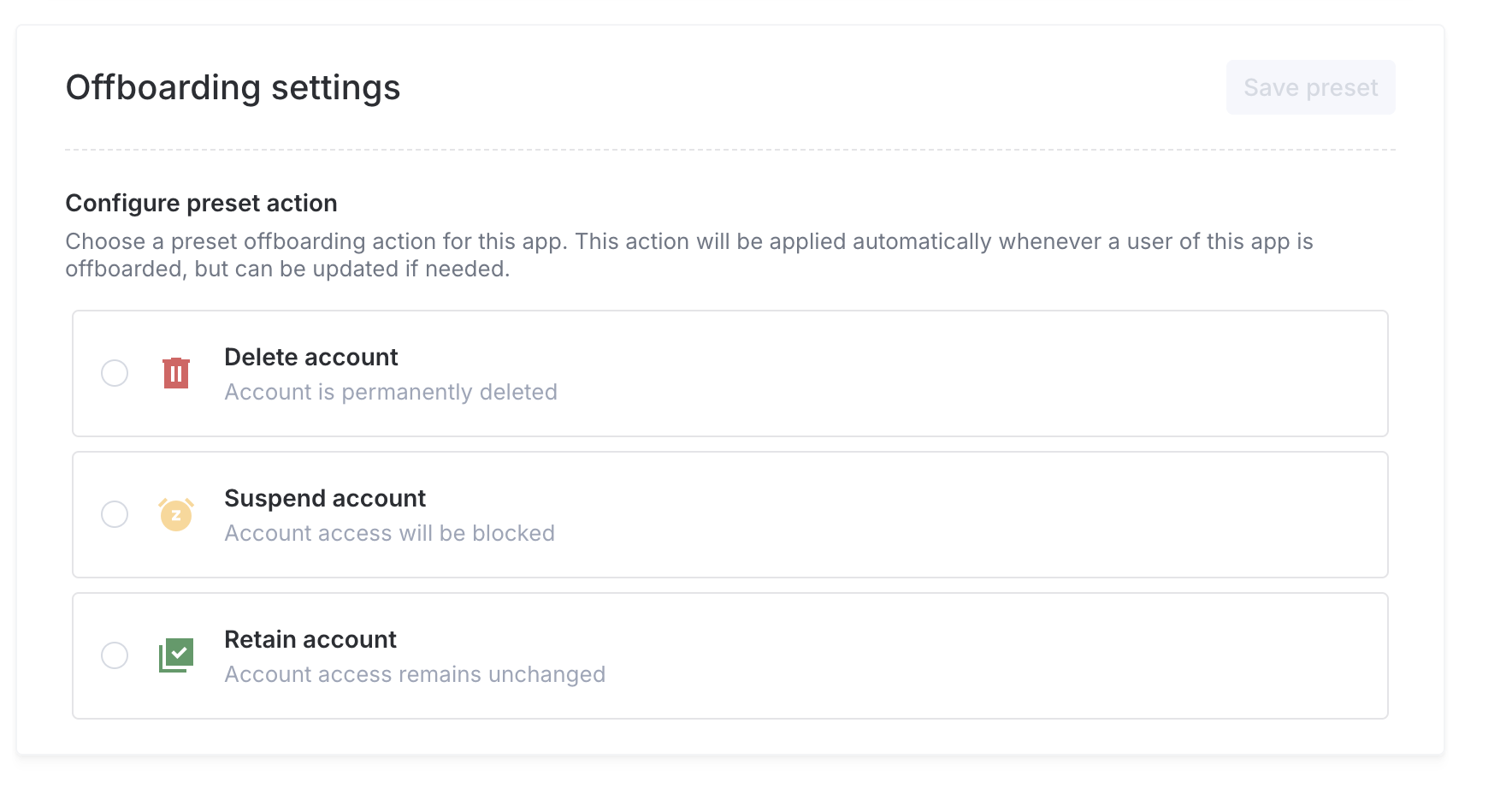
| Action | What happens |
|---|---|
| Suspend | The account is suspended. The user cannot log in, but their data is preserved. |
| Delete | The account is permanently deleted. |
| Retain | No action is taken. The account stays active. |
For apps that support data migration (for example, Google Drive), you can also specify which person should inherit the departing employee's files.
Click Save preset after making your selection.
The preset is applied automatically during offboarding. You can still override it for individual users at the time of offboarding if needed.
Danger zone
These actions affect the connection itself. Use them with care.
| Action | What it does |
|---|---|
| Disconnect | Removes the connection but keeps all synced data in Iden. You can reconnect the app at any time. |
| Disconnect and delete all data | Removes the connection and permanently deletes all synced data. This cannot be undone. |
"Disconnect and delete all data" is permanent and cannot be reversed. Only Super Admins can perform this action.