
External, Shared & Service Accounts
How to classify non-standard accounts in Iden and why it matters for access governance.
Not every account in your connected apps belongs to a full-time employee. Contractors, automated systems, and shared logins all need to be treated differently. This page explains how to classify accounts in Iden so that access reviews, offboarding, and alerts handle them correctly.
Iden supports four account types. By default, every account is treated as a Human (regular employee). You can change any account to one of the other types described below.
Account types
Human (default)
A regular employee account. This is what Iden assigns to every account it syncs unless you change it. Human accounts are included in standard offboarding workflows, access reviews, and alerts.
External user
An account belonging to someone outside your organization - for example, a contractor, consultant, vendor, or partner who has been given access to one of your apps.
Why mark an account as external:
- External users are grouped separately from employees in access reviews
- You can set up review reminders specifically for external users
- The External users alert in app settings flags when external accounts appear in an app
How to mark an account as external: Go to the users table, find the account, open the ... actions menu, and select Approve External.
The screen below shows where to find that option:
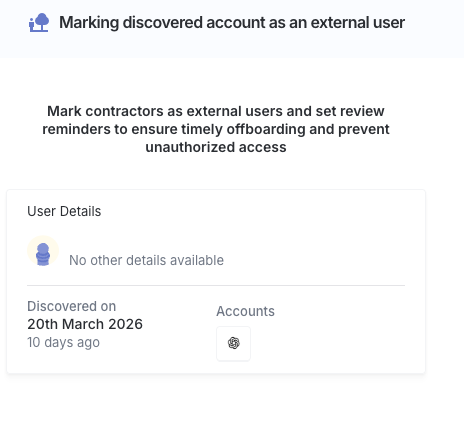
Example: A Figma account belonging to a design agency that has access to your workspace. Mark it as External so it appears in contractor access reviews rather than employee reviews.
Service account
An account used by a system, software bot, or automated process - not tied to any individual person.
Why mark an account as a service account:
- Service accounts are excluded from employee offboarding workflows, so they are never accidentally removed when someone leaves
- They appear separately in access reviews so reviewers are not confused by unfamiliar names
- They will not be incorrectly flagged by the Unmapped accounts alert (which looks for accounts that cannot be matched to a person)
How to mark an account as a service account: Go to the users table, open the ... actions menu on the account, and select Mark account as a service account.
The screen below shows the confirmation step:
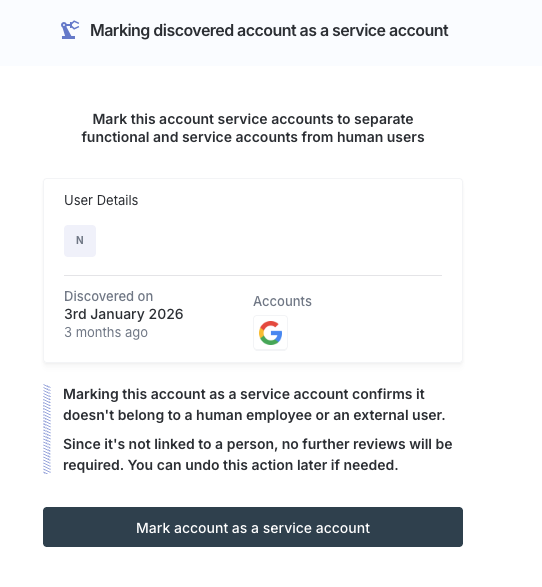
Example: A GitHub account named
deploy-botused by your automated deployment system. Marking it as a service account ensures it is never accidentally offboarded.
Shared account
An account that multiple people log into together using the same credentials.
Why mark an account as shared:
- Shared accounts are excluded from standard offboarding. If Iden deprovisioned a shared account, it would cut off access for everyone who uses it.
- You can assign one or more owners so it is clear who is responsible for the account
- Shared accounts are treated separately in access reviews
How to mark an account as shared: Go to the users table, open the ... actions menu on the account, and select Mark account as a shared account.
Example: A Zendesk support account that your entire support team logs into using one shared login. Mark it as Shared so it is not deprovisioned when any one team member leaves.
Reverting a classification
You can undo any non-Human classification at any time. Open the ... menu on the account and select Mark Account as a Human. The account will return to standard employee treatment.
Where account types appear in Iden
Once you classify accounts, the labels appear throughout the platform to help you stay organized.
| Where | What you see |
|---|---|
| Users page - Type column | A badge showing the account type and whether it is internal or external |
| Access reviews | Non-Human accounts are grouped separately from employee accounts |
| Offboarding | Service and shared accounts are excluded by default |
| Alerts | External user accounts trigger the "External users" alert in app settings |
| User filters | You can filter the users table by Employee, External, or Non-Human |