
Approval Routing
Configure who approves access requests for each app, and how approval chains are structured.
This page explains how to set up approval routing - the rules that determine who must approve an access request before it is granted.
You configure approval routing separately for each app. For example, GitHub might only need a manager's approval, while Salesforce might require both a manager and an IT admin to sign off.
Opening approval routing
Go to Connected Apps, click on an app, select the Settings tab, and scroll to the Approval routing section.
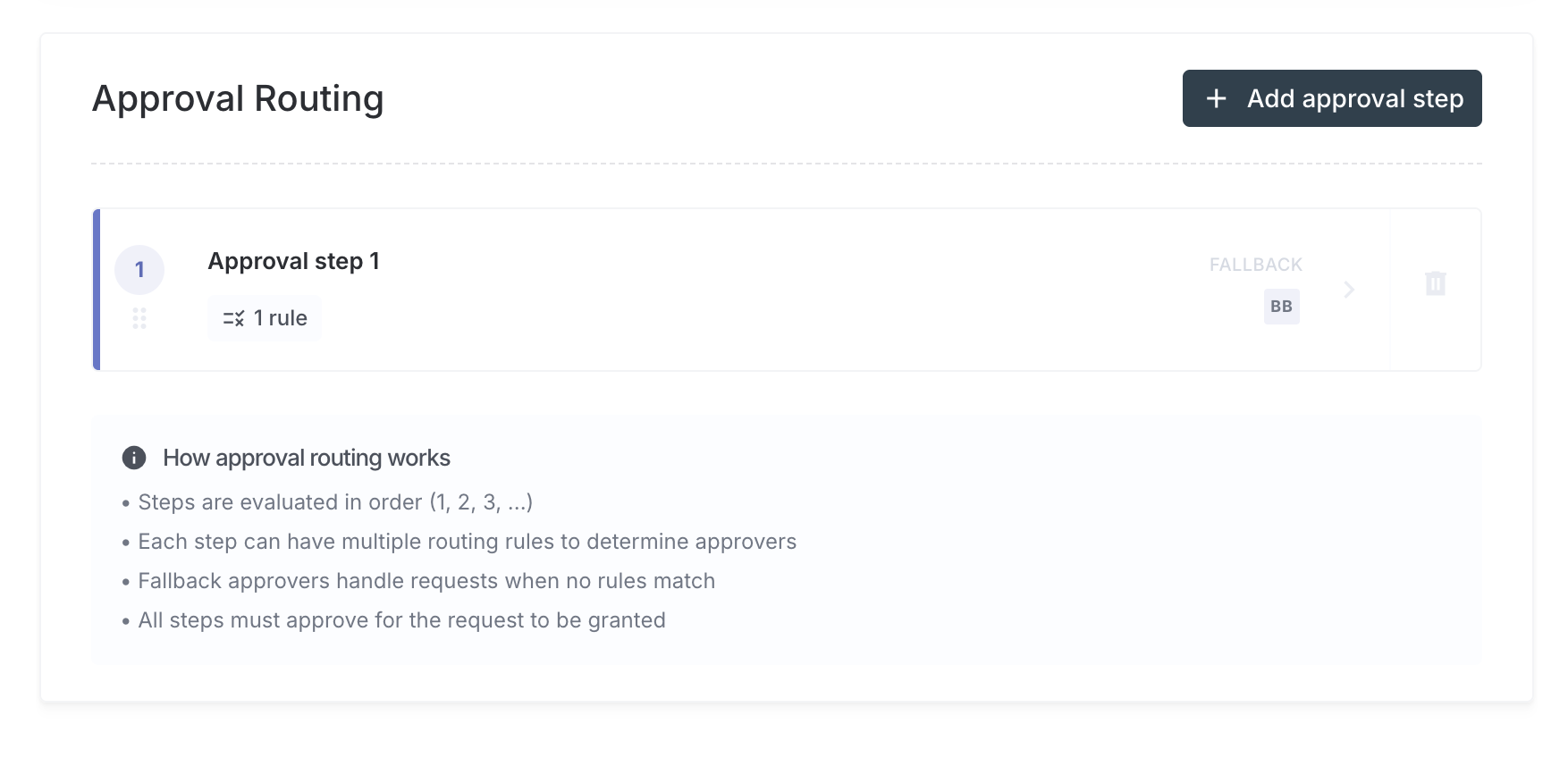
The screen below shows the Approval routing section with approval steps and configuration options:
Approval levels
Each app can have one or more approval levels - these are ordered steps that a ticket must pass through, one at a time.
Example: A two-level setup for Salesforce:
- Level 1: The employee's direct manager must approve
- Level 2: An IT admin must approve
Both approvals are required before access is granted.
Levels are completed in order. If any level rejects the ticket, the entire request is rejected immediately. It does not continue to the next level.
Adding an approval level
Click Add approval step at the bottom of the Approval routing section. A panel opens where you can configure the new level.
Step name
Give the level a clear, descriptive name - for example, Manager Approval or IT Review.
Approver type
| Type | How it works |
|---|---|
| Custom List | You choose exactly who the approvers are, and can add optional routing rules (see below) |
| Department Manager | Iden automatically sends the request to the person who is the requestor's direct manager |
Approval strategy (Custom List only)
| Strategy | What it means |
|---|---|
| All must approve | Every approver in the list must say yes before the ticket moves to the next level |
| Any can approve | Just one approval from anyone in the list is enough |
Fallback approvers
Fallback approvers are the default people who receive a request when none of your routing rules apply. You should always set at least one fallback approver. Without one, no one will receive the ticket and it will be stuck.
An approval level shows a "Needs configuration" warning if it has no routing rules and no fallback approvers. Any tickets for this app will be stuck until you fix this.
Routing rules
Routing rules let you send tickets to different approvers depending on what is being requested. This means you do not have to send every request to the same person.
Each routing rule includes:
- A name (for example,
Admin Role Requests) - An enabled/disabled toggle to turn the rule on or off
- One or more conditions that trigger the rule
- A list of approvers who receive the request when the conditions match
Condition types
| Condition | What it checks |
|---|---|
| Group requested | Triggers when the user asks for access to specific groups or roles you define |
| Duration exceeds | Triggers when the requested access period is longer than a threshold you set (for example, more than 30 days) |
| Attribute match | Triggers based on a specific attribute value on the request (an attribute is an extra data field tied to a permission) |
Example rule: "If the group requested is
github-admin, route to the Security Team for approval."Condition: Group requested =
github-adminApprovers:security-team@company.com
Rule priority
Rules are checked in order from top to bottom. The first rule that matches determines the approvers for that level. If no rule matches, the fallback approvers receive the ticket instead.
Reordering levels
You can change the order of approval levels. Drag the handle (the six-dot icon) on the left side of any level card to move it up or down. The new order takes effect immediately after saving.
How approvers are notified
When a ticket reaches an approval level, Iden notifies the approvers in two ways:
- Iden sends an email notification to the approvers at that level.
- If the Slack bot is installed, approvers also receive a Slack message with Approve and Reject buttons. They can take action directly from Slack without logging in to Iden.
See Slack Bot for setup instructions.
Example configurations
Single-level, any approver Good for most apps. One group of approvers - any one of them can approve the request.
Two-level, all must approve Good for sensitive apps. The manager approves first, then an IT admin approves. Both are required before access is granted.
Rule-based routing Good for apps with different levels of access. Everyday requests go to a general approver, while high-privilege requests (such as admin roles) are automatically routed to the Security team through a routing rule.