
Access Request Tickets
How to raise, track, and manage access request tickets in Iden.
This page explains how to request access to an app, track the progress of your request, and - if you are an approver - how to approve or reject requests from others.
Access request tickets are how employees ask for access to apps, groups (a set of users with shared permissions), or roles (a defined level of permission in an app). Every request goes through an approval process before access is granted. This gives your team a clear, recorded history of every decision.
Raising a ticket
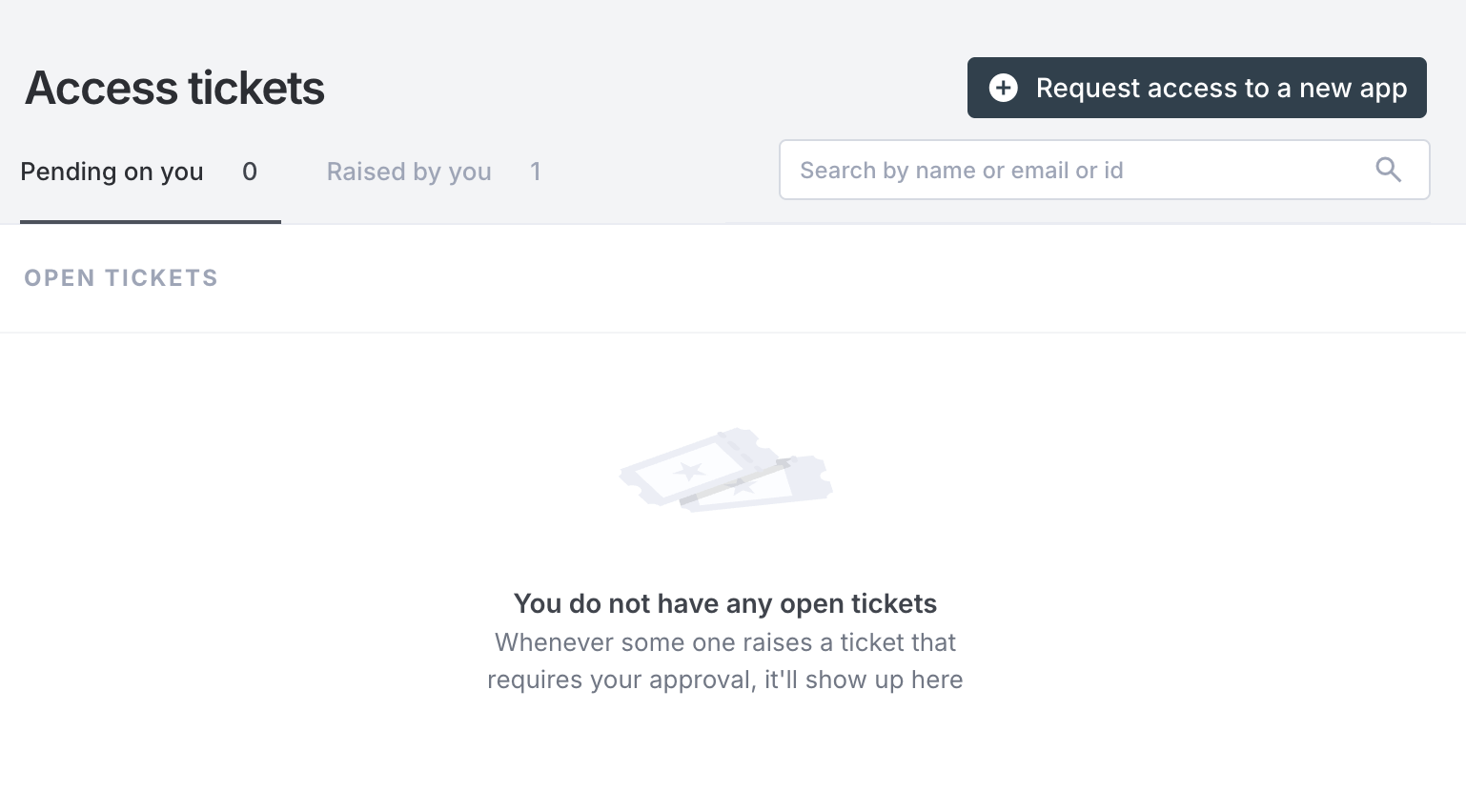
Any user can raise a ticket from the Tickets page in the dashboard. Admins can also raise tickets on behalf of other users.
Click Request Access to open the request form.
The screen below shows the Tickets page with the Request Access button and the form that opens:
1. Select the application
Choose which app you need access to. If you already have access to an app, it shows a "Has access" badge. You can still submit a request if you need to change or extend your current access.
2. Choose the access
Search for the specific role, group, or permission you need within that app. Here are some examples:
GitHub: Request the
engineering-teamgroup Slack: Request access to a specific workspace channel group Salesforce: Request theSales Managerrole
If you are changing your existing access (for example, moving to a different role rather than adding a new one), a Modify option will appear next to your current membership.
Some permissions may ask you to fill in extra fields. These fields appear automatically in a side panel when needed.
3. Set the duration
Choose how long you need the access:
| Option | What it means |
|---|---|
| Indefinite access | Access has no expiry date |
| Limited duration | Set a start date and an end date |
If the app has a maximum access duration set in its policy, your request will be flagged before you submit if it exceeds that limit. See Access Policies for more detail.
4. Add a reason
Briefly explain why you need this access. This helps approvers make a confident decision and becomes part of the permanent record.
5. Submit
Click Create Ticket. Your request is immediately sent to the configured approvers.
Ticket lifecycle
A ticket moves through the following stages:
Pending  →  Approved  →  (access granted automatically)
→ Rejected| Status | What it means |
|---|---|
| Pending | Waiting for an approver to act |
| Approved | All required approvals are complete - Iden grants access automatically |
| Rejected | At least one approver declined the request |
Once approved, Iden automatically gives the user the requested access in the target app. You do not need to do anything else.
Tracking tickets
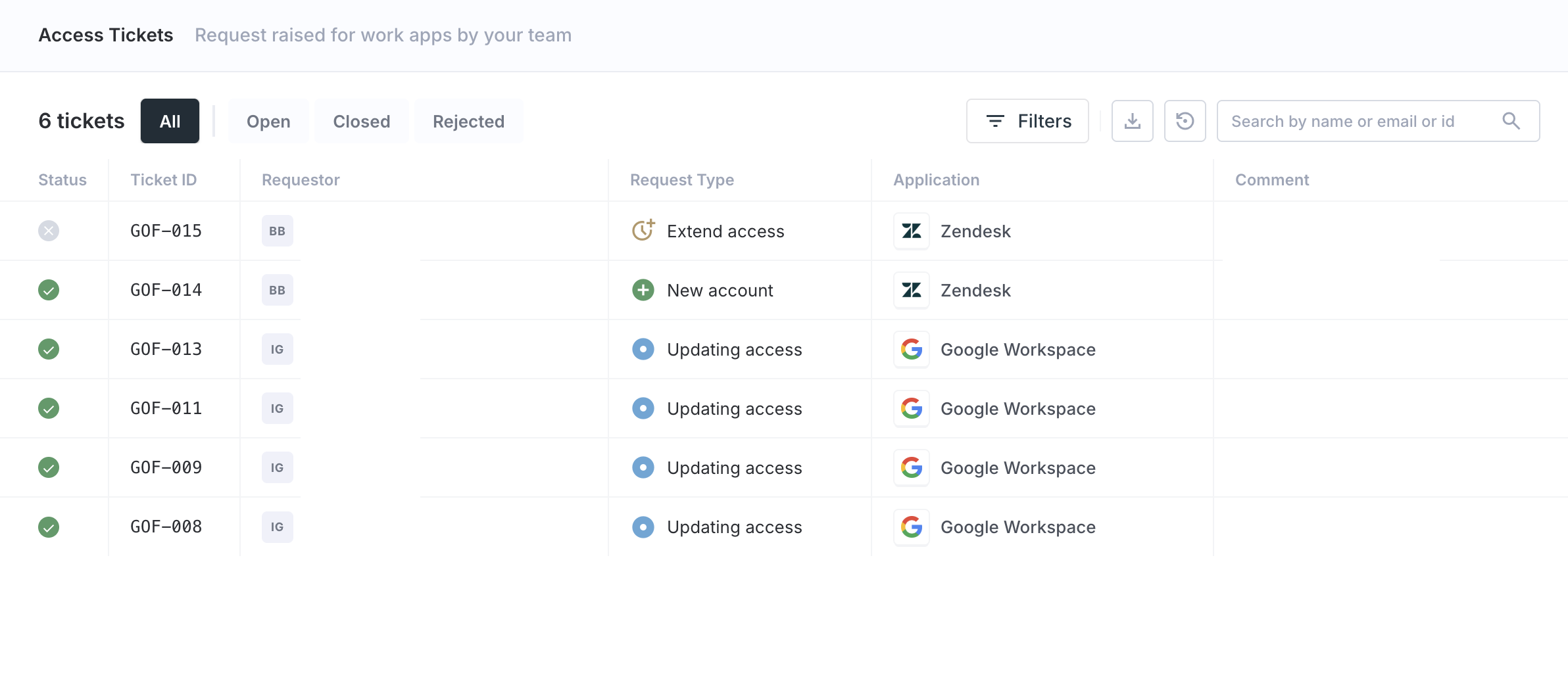
Go to Tickets in the left sidebar to see all tickets in your organization.
Your screen should look like this:
Filter tabs
Use the tabs at the top to narrow down the list:
| Tab | Shows |
|---|---|
| All | Every ticket |
| Open | Tickets still waiting for approval |
| Closed | Tickets that were approved |
| Rejected | Tickets that were declined |
Columns
| Column | What it shows |
|---|---|
| Status | Current ticket state with an icon |
| Ticket ID | A unique reference number for this ticket |
| Requestor | Who submitted the request |
| Request Type | The type of request (Request, Re-raise, or Extend) and the action (Add, Remove, or Modify) |
| Application | Which app the request is for |
| Comment | The reason the requester provided |
| Created | How long ago the ticket was submitted |
| Resolved in | How quickly it was approved or rejected |
Approving or rejecting a ticket
If you are set up as an approver for an app, tickets waiting for your action will appear in the Open tab. Click any ticket to review it.
The screen below shows the approval panel that opens:
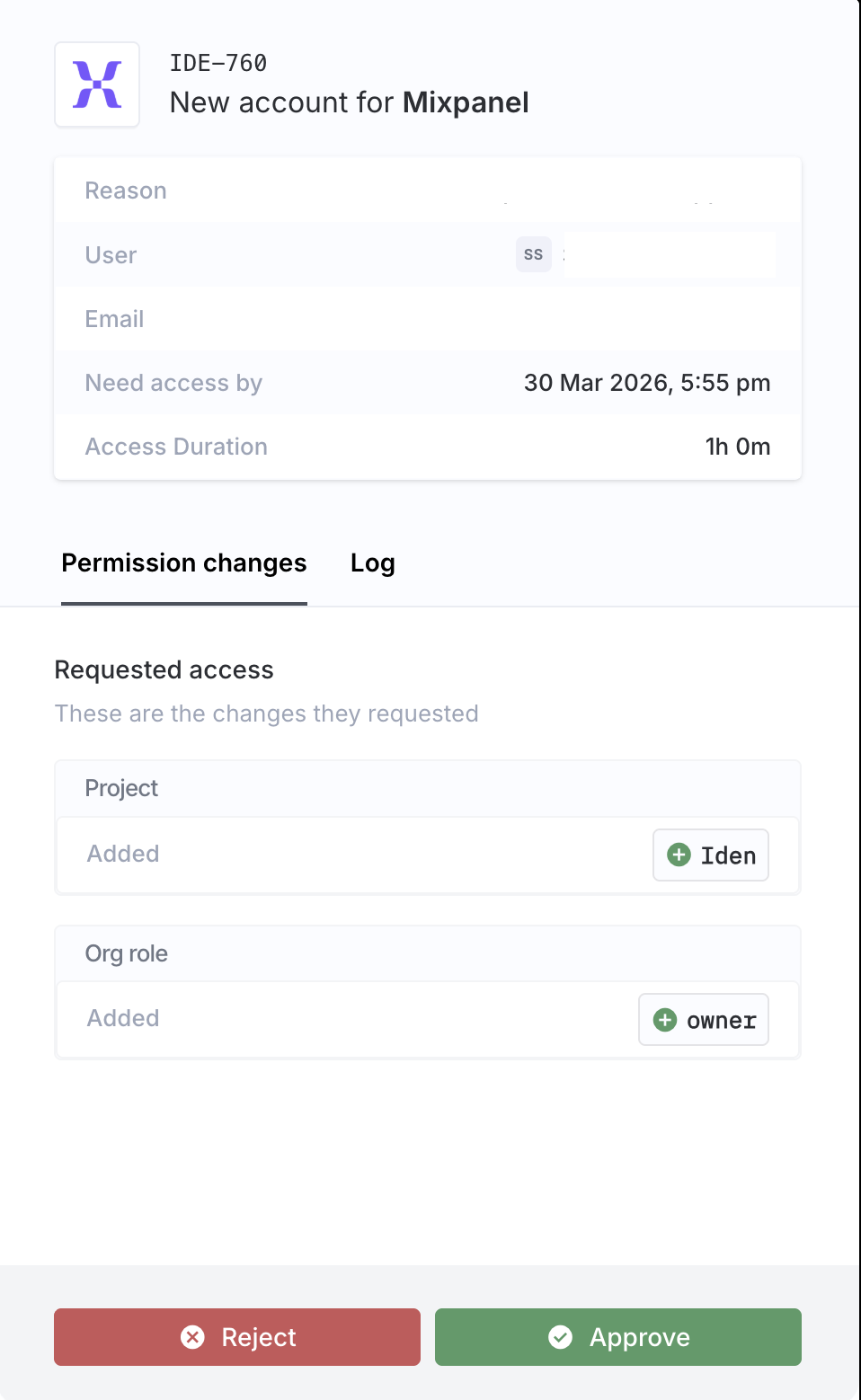
The panel shows:
- Permission changes - exactly what access is being requested (groups added, removed, or modified)
- Licenses - any license assignments involved (a license controls how many paid seats are used in an app)
- Log - the full approval history for this ticket
To approve
Click Approve. A confirmation message appears:
"Are you sure you want to approve this request?"
Click Yes, approve ticket as is to confirm. You can optionally add a comment for the record.
If you want to adjust the duration before approving, click Modify duration before approving. A calendar and time picker let you set new start and end times. Then click Approve with modified duration.
To reject
Click Reject, confirm with Yes, reject ticket, and optionally add a comment explaining your decision.
Ticket types
| Type | When it is created |
|---|---|
| Request | A brand new access request |
| Re-raise | Requesting access again after it has expired |
| Extend | Asking to extend the duration of access you already have |