
Access Policies
Control which groups and roles users can request access to within each connected app.
This page explains how to set up access policies for each app. By the end, you will know how to control exactly which permissions employees can request, and how to set time limits on how long access can last.
Access policies (also called Ticket Policies) let you define which resources - groups, roles, or permissions - employees are allowed to request for a given app. You can allow all resources, allow only specific ones, or block requests entirely. These rules are checked before a request even reaches an approver.
Opening access policies
Go to Connected Apps, click on an app, select the Settings tab, and scroll to Ticket Policies.
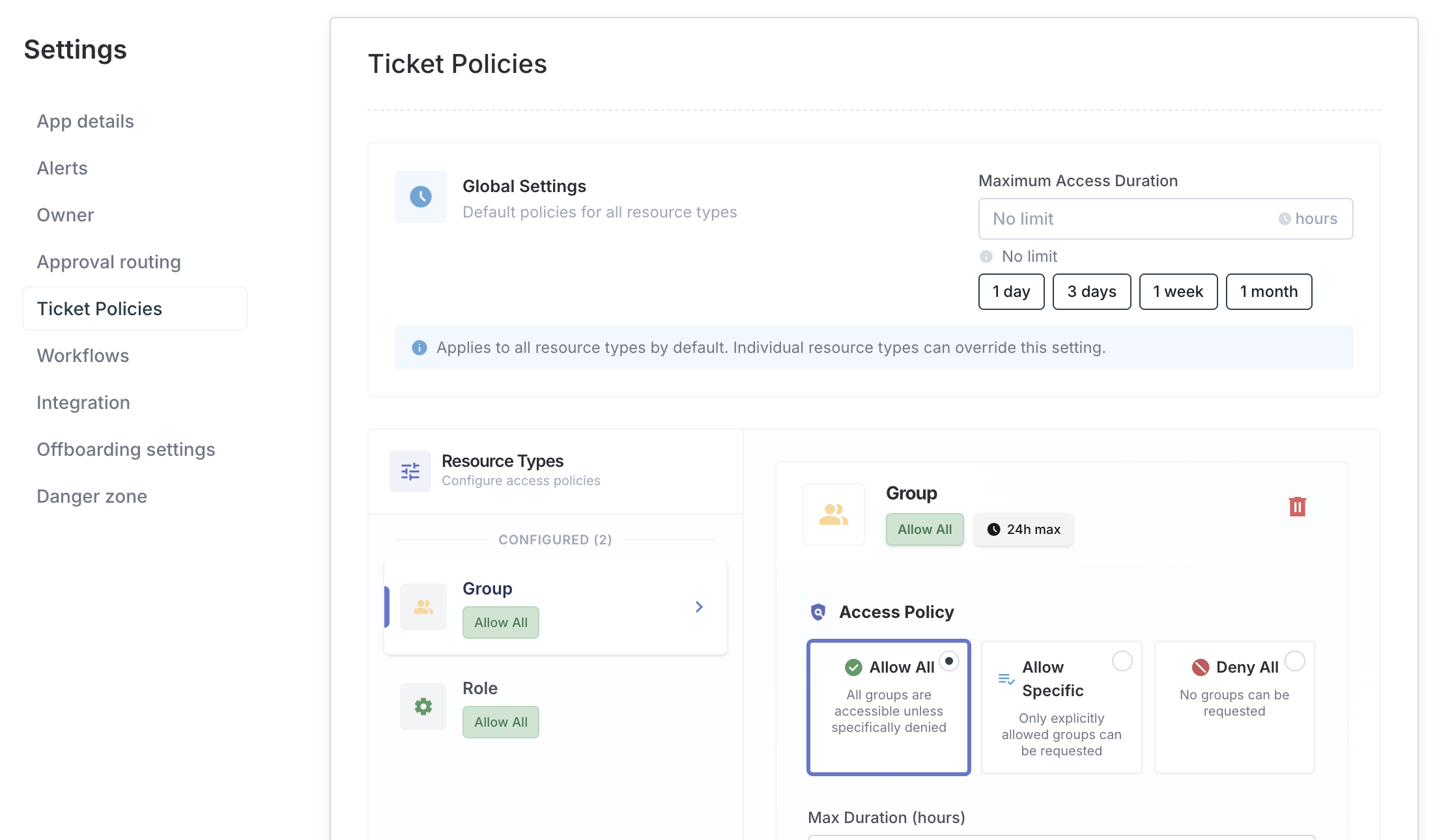
The screen below shows the Ticket Policies section with the resource type sidebar and policy options:
Global maximum duration
At the top of Ticket Policies, you can set a Global Maximum Duration - the longest period of time any user can request access to this app. This limit applies regardless of which group or role they are requesting.
Example: Set 90 days as the maximum. If someone requests access for longer than 90 days, they will see a warning before submitting. The request will also be flagged for approvers to review.
Use the preset buttons (1h, 8h, 24h, 7d, 30d) for common durations, or type in a custom value.
Policy modes
Each resource type in an app (for example, groups or roles) has its own policy mode. Choose the mode that fits how open or restricted you want that resource type to be:
| Mode | What it means |
|---|---|
| Allow All | All groups and roles can be requested by default. You can still block specific ones as exceptions. |
| Allow Specific | Only the groups and roles you explicitly list can be requested. Everything else is blocked. |
| Deny All | No one can request access to any group or role of this type through a ticket. |
Here is how to choose the right mode:
- Use Allow All for apps where most resources are broadly available and you only need to block a few specific ones.
- Use Allow Specific for sensitive apps where you want an approved list of what can be requested.
- Use Deny All to prevent ticket-based requests entirely for a resource type. Note that admins can still grant access directly using the Grant Access flow.
Group rules
Group rules let you create individual exceptions within the policy mode you have chosen.
- In Allow All mode: Add specific groups to block. Everything else remains requestable.
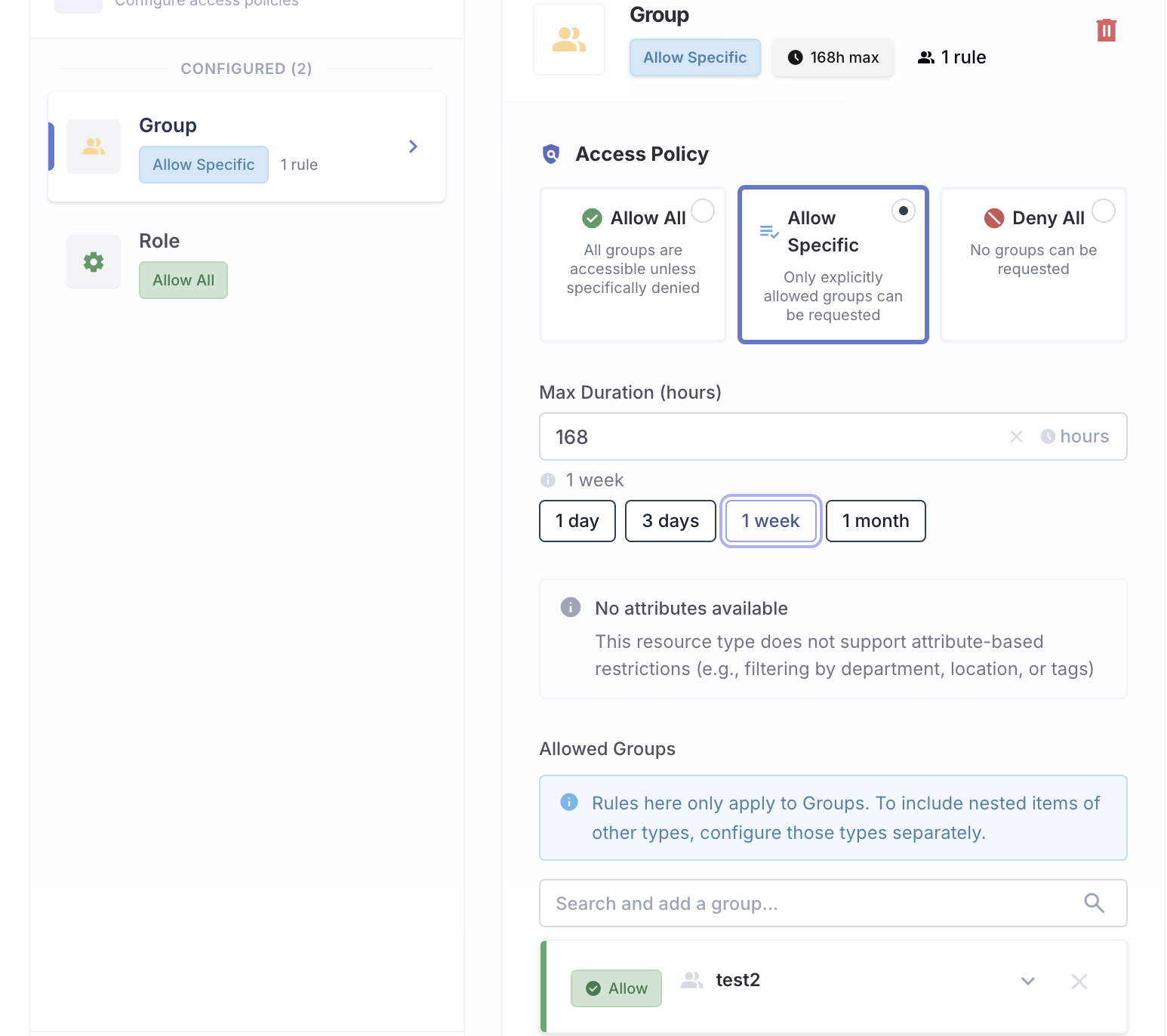
- In Allow Specific mode: Add the groups you want to allow. Only those groups can be requested.
The screen below shows an expanded group rule with the Scope setting and Max Duration field:
Configuring a group rule
When you add a group, you can configure three settings:
Scope
Scope controls whether the rule applies to just the group itself, its sub-groups (groups nested inside it), or both:
| Option | What it covers |
|---|---|
| Self Only | Only this exact group |
| Self + Descendants | This group and all sub-groups nested beneath it |
| Descendants Only | Only the sub-groups, not the parent group itself |
Max duration
Set a different maximum access duration for this specific group. This overrides the global maximum. This is useful for high-privilege groups where you want access to expire sooner.
Example: Allow the
github-orggroup with a 90-day maximum, but allow thegithub-admingroup with only a 7-day maximum.
Attribute restrictions (if the app supports attribute-based membership)
Further narrow down which values users can request for this group. For example, you could restrict a Salesforce profile so that it only allows access for certain territories.
How policies interact with tickets
When a user submits a request, Iden checks the access policy automatically. Here is what happens at each step:
- Iden checks the app's access policy for the type of resource being requested.
- If the resource is blocked (either by Deny All mode or a specific deny rule), the user cannot select it in the request form at all.
- If the resource is allowed, the request moves on to the approval process.
- If the requested duration is longer than the configured maximum, the user sees a warning. They can still submit the ticket, but approvers will see the policy issue flagged.
Policies control what users can request. They do not limit what admins can grant directly. Admins using the Grant Access flow bypass ticket policies entirely.
Saving and deleting policies
Click Save Ticket Policy after making any changes. If you have unsaved changes, an amber warning banner appears at the top of the section.
To remove the entire policy for an app, click Delete Ticket Policy at the bottom of the section. This resets the app to unrestricted - all resources become requestable with no duration limits.