
Employee Offboarding
How to offboard employees in Iden - revoke access, handle reportees, and schedule exit timing.
When an employee leaves your organization, Iden handles removing their access across all connected apps. This guide walks you through suspending or deleting accounts, moving files to the right person, and reassigning direct reports - all in one workflow.
You need the Super Admin or Users Read/Write role to offboard employees.
Starting offboarding
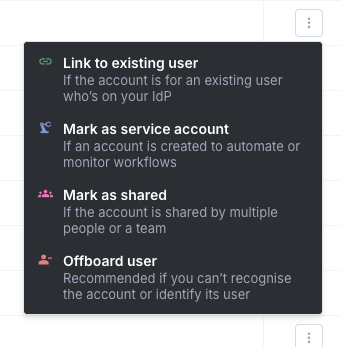
From the left sidebar, go to Users. Find the employee, click the actions menu (the three-dot icon) on their row, and select Offboard.
The screen below shows what you will see:
Step 1: Review offboarding actions
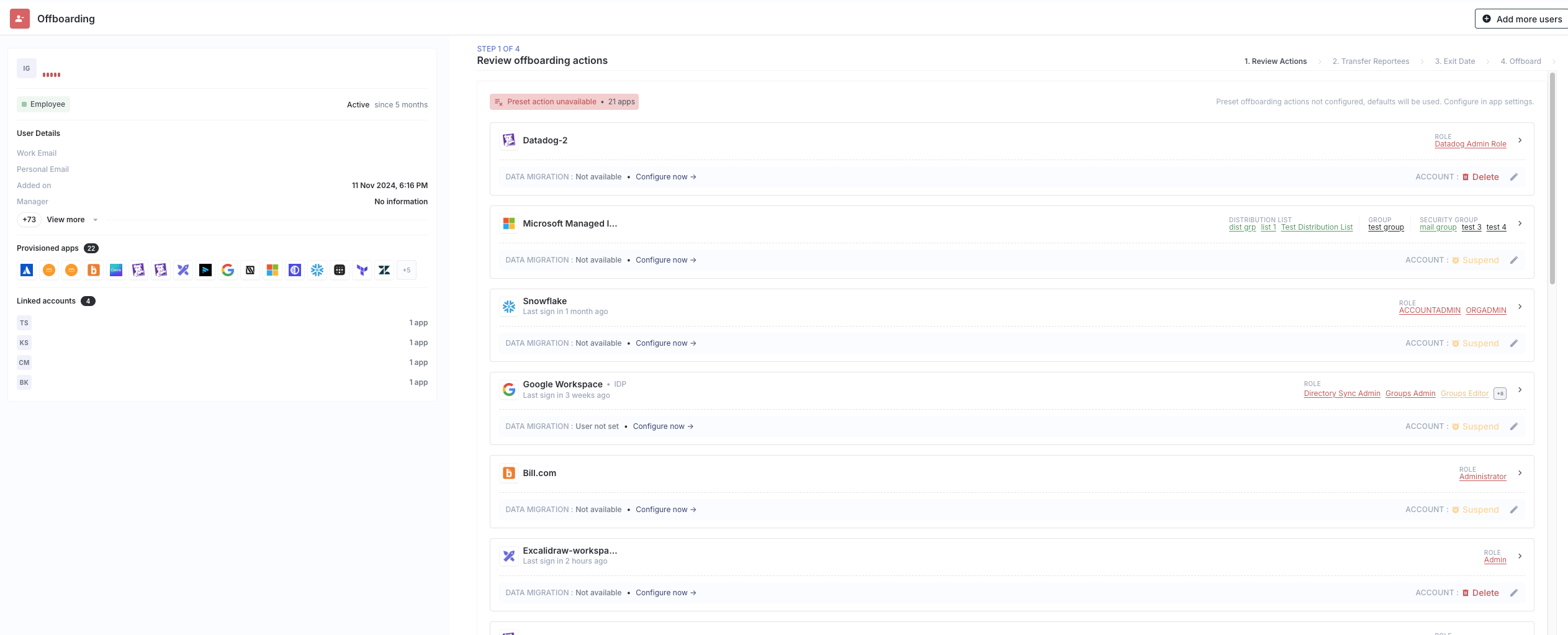
Iden shows you what will happen to each of the employee's app accounts. Accounts are grouped based on whether a default action has been set up:
Preset action configured (teal badge) - These are apps where you have already set a default action in App Settings. The preset (Suspend, Delete, or Retain) will run automatically.
Preset action unavailable (red badge) - These are apps without a default action. Iden uses a fallback order: Suspend if available, then Delete, then Retain.
The screen below shows what you will see:
Changing an action
Click Edit on any app card to change what happens to that account:
| Action | What it does |
|---|---|
| Suspend | The account is disabled. The employee cannot log in, but their data is kept. |
| Delete | The account is permanently removed. |
| Retain | No change. The account stays active. |
For apps that support data migration (such as Google Drive), you can also choose where the departing employee's files should be moved.
Step 2: Handle direct reports (if applicable)
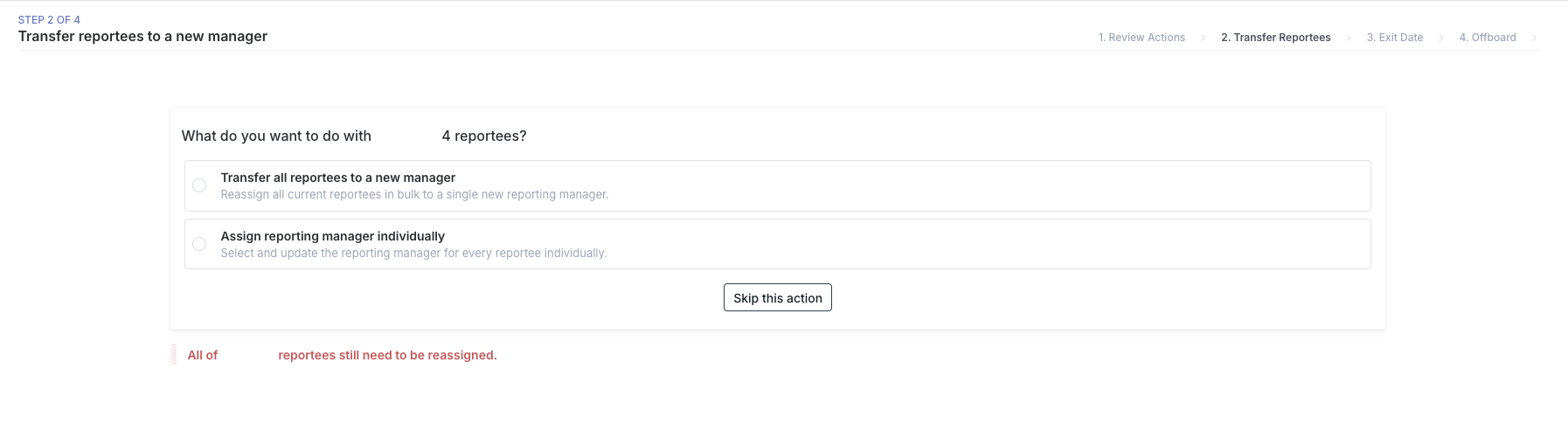
If the employee manages other people, you will need to reassign those direct reports. Choose one of these options:
Transfer all to a new manager - Pick one new manager and all direct reports are reassigned to that person at once.
Assign a new manager individually - Choose a different new manager for each direct report.
The screen below shows what you will see:
Step 3: Set the exit date
Choose when access is removed:
| Option | When it happens |
|---|---|
| Right now | Immediately when you confirm |
| End of the day | At midnight (11:59 PM) on today's date |
| Custom date and time | Choose a specific future date and time |
Example: If someone's last day is Friday, set End of day on Friday. Access is removed at midnight automatically - no manual follow-up needed.
You cannot choose a date in the past.
Step 4: Confirm
The final step shows the employee's complete offboarding plan. Review it, then click Confirm and offboard [name] to submit.
The employee's status updates to Offboarded. Access removal runs automatically in the background at the scheduled time.
Important notes
Service and shared accounts are excluded - Iden flags these separately because removing a shared account could affect other people who use it. Handle these manually after the offboarding is submitted.
Manual apps require a human action - For apps that are not connected to Iden's automated sync, Iden creates a task and notifies the app owner to take action themselves.
Offboarding multiple people at once - Select multiple users from the Users page and use the bulk actions dropdown to offboard them together. You can set one exit date and one default action that applies to everyone in the group.