
Linking Users
Connect an employee's identity in Iden to their accounts across connected apps.
When Iden imports users from a connected app, it tries to automatically match each app account to the right employee in your Iden directory. Sometimes it cannot find a match - for example, when an employee uses a different email address, a non-standard username, or an account that was created before the app was connected. When that happens, the account appears as unmapped.
Linking is the process of manually connecting an unmapped app account to the correct employee. This guide shows you how to do it.
Why linking matters
Without linking, Iden cannot:
- Include the account in access reviews for that employee
- Automatically remove the account when the employee is offboarded
- Show a complete picture of which apps and permissions that employee has
Example: Your GitHub organization has a user called
jsmith-dev, who is actually your employee Jane Smith (jane.smith@company.com). Linkingjsmith-devto Jane means her GitHub access shows up on her profile and is removed correctly when she leaves.
How automatic linking works
After you connect an app, Iden tries to match each imported account to an employee using email address, name similarity, and domain matching. High-confidence matches are linked automatically. Accounts that cannot be matched appear as unmapped. You can set up an alert so you are notified when new unmapped accounts appear - go to App Settings and look for the Unmapped accounts alert.
Linking an account manually
- Go to Connected Apps and open the relevant app.
- Click the Users tab and find the unmapped account.
- Click the actions menu (the three-dot icon) on the account row and select Link user.
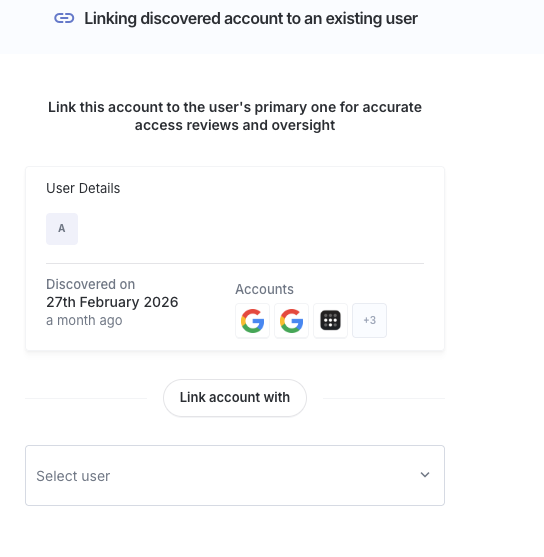
- The linking panel opens on the right side of the screen.
The screen below shows what you will see:
Using suggested matches
If Iden has identified likely matches, they appear as suggested candidates marked with a sparkle icon. Click a suggestion to select that person.
Searching manually
Use the search field to find any employee in Iden by name or email. Their profile card appears so you can confirm you have the right person.
- Click Link user to confirm.
The account is now linked. It will appear on the employee's profile and be included in future access reviews and offboarding.
Unlinking an account
If an account was linked to the wrong person, open the actions menu (the three-dot icon) on the app user and choose to unlink it. The account returns to unmapped status and can be linked again to the correct employee.
Tips
- Link accounts right after connecting a new app - especially for apps where employees use non-standard usernames, such as GitHub handles or Slack display names.
- Turn on the Unmapped accounts alert in App Settings so you are notified whenever new unmapped accounts appear after a sync.